Screenshot & annotate
Capture it. Mark it up. Find it later.
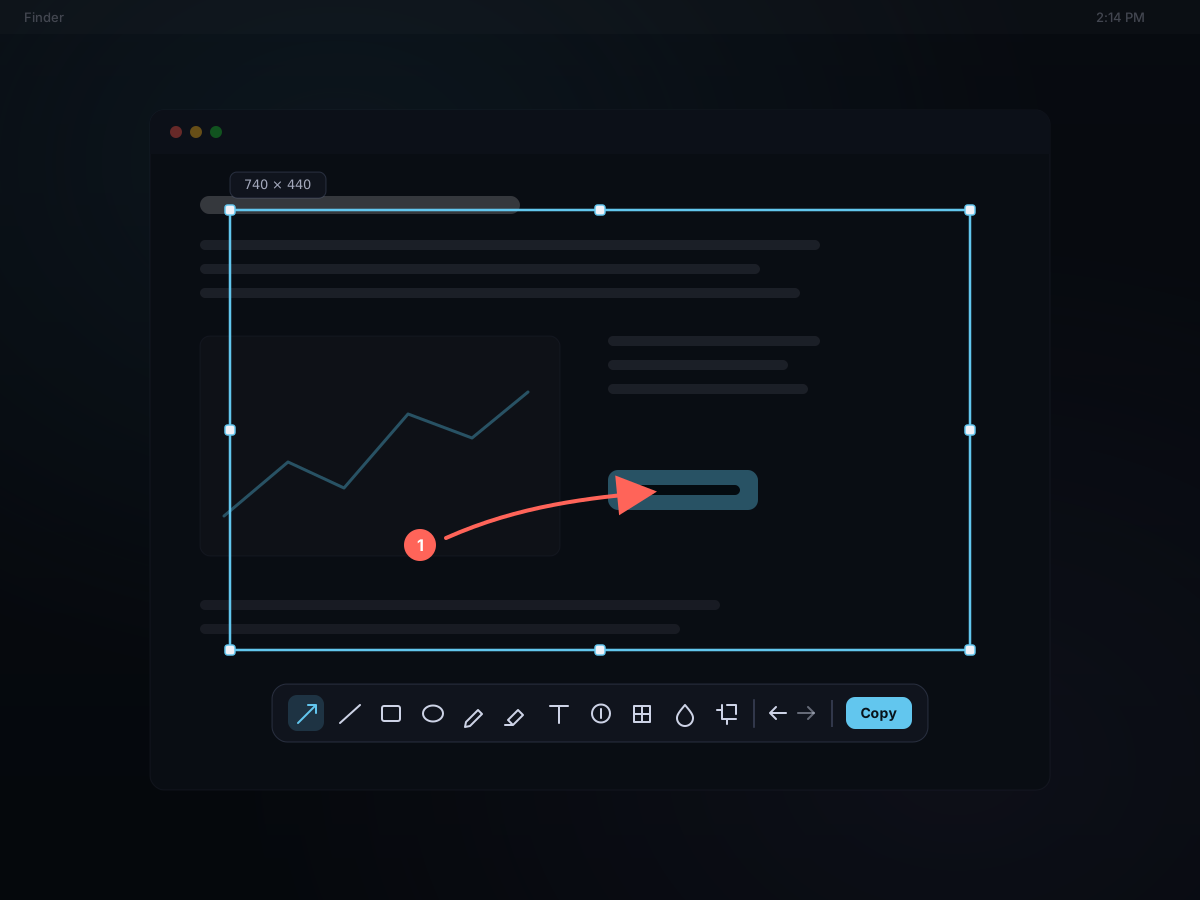
Freeze the screen, drag out a region or click a window, and annotate it right there. Every screenshot lands in your clipboard history — searchable by the text inside it.
⌘⇧2One shortcut to capture (configurable). A separate shortcut grabs just the text.
How it works
- 1
Capture
Press ⌘⇧2 to freeze the screen. Drag out a region, hover and click a window, or hold ⌘ to snap the selection to the exact UI element under your cursor — on any of your displays.
- 2
Annotate in place
Point things out with arrows, shapes, text, and step badges. Hide what's private with mosaic or blur. Undo anything with ⌘Z.
- 3
Copy, save, or pin
Send it to the clipboard, save it as a file, or pin it to the desktop. Either way it lands in your history — ready to search and reuse.
Snap to the element under your cursor
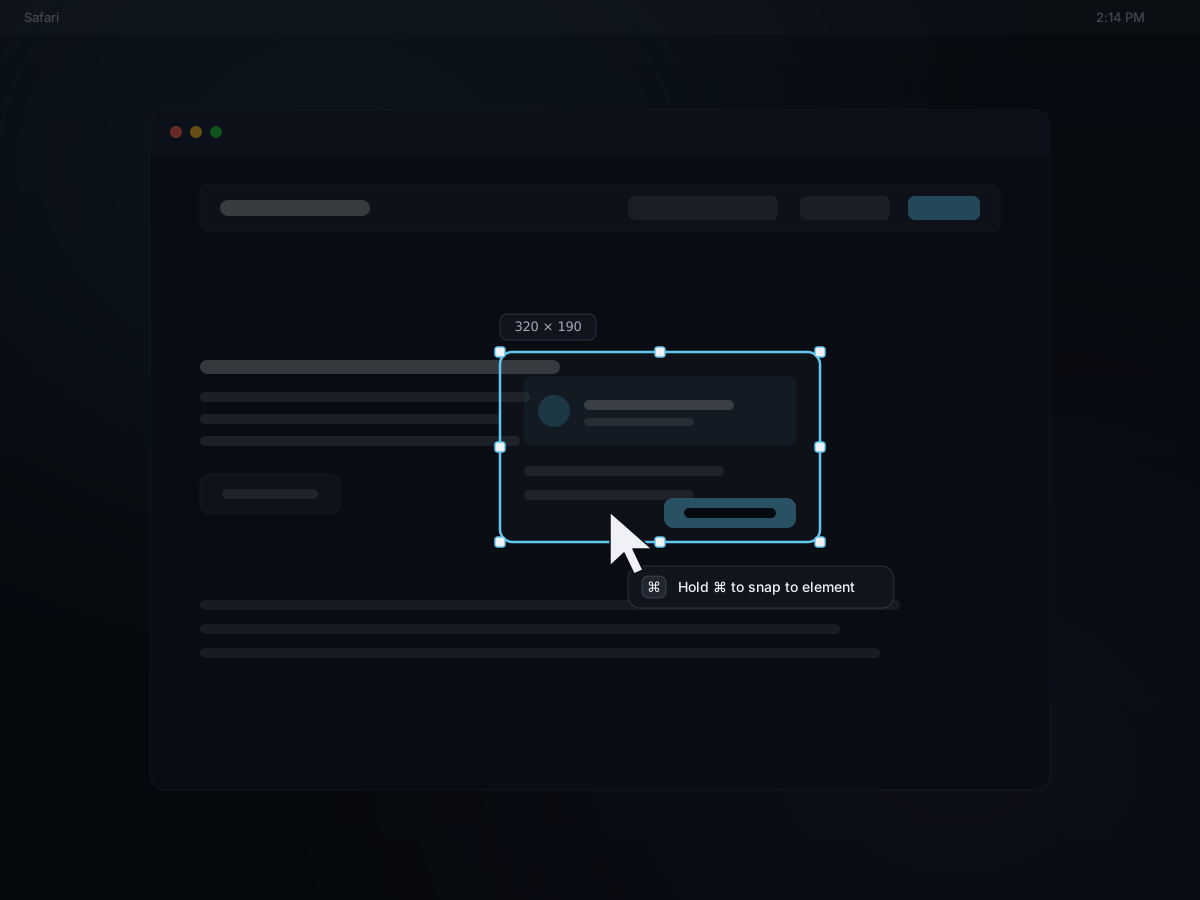
Framing a button or a card by hand is fiddly. Hold ⌘ while you aim and Kopit detects the UI element under the pointer and snaps the selection to its exact bounds — pixel-perfect, in any app that exposes it. Let go and it's captured.
- Hold ⌘ to highlight the element beneath the cursor
- Works across native, browser, and Electron apps
- Falls back to the whole window when nothing precise is found
A full markup kit, right on the screenshot
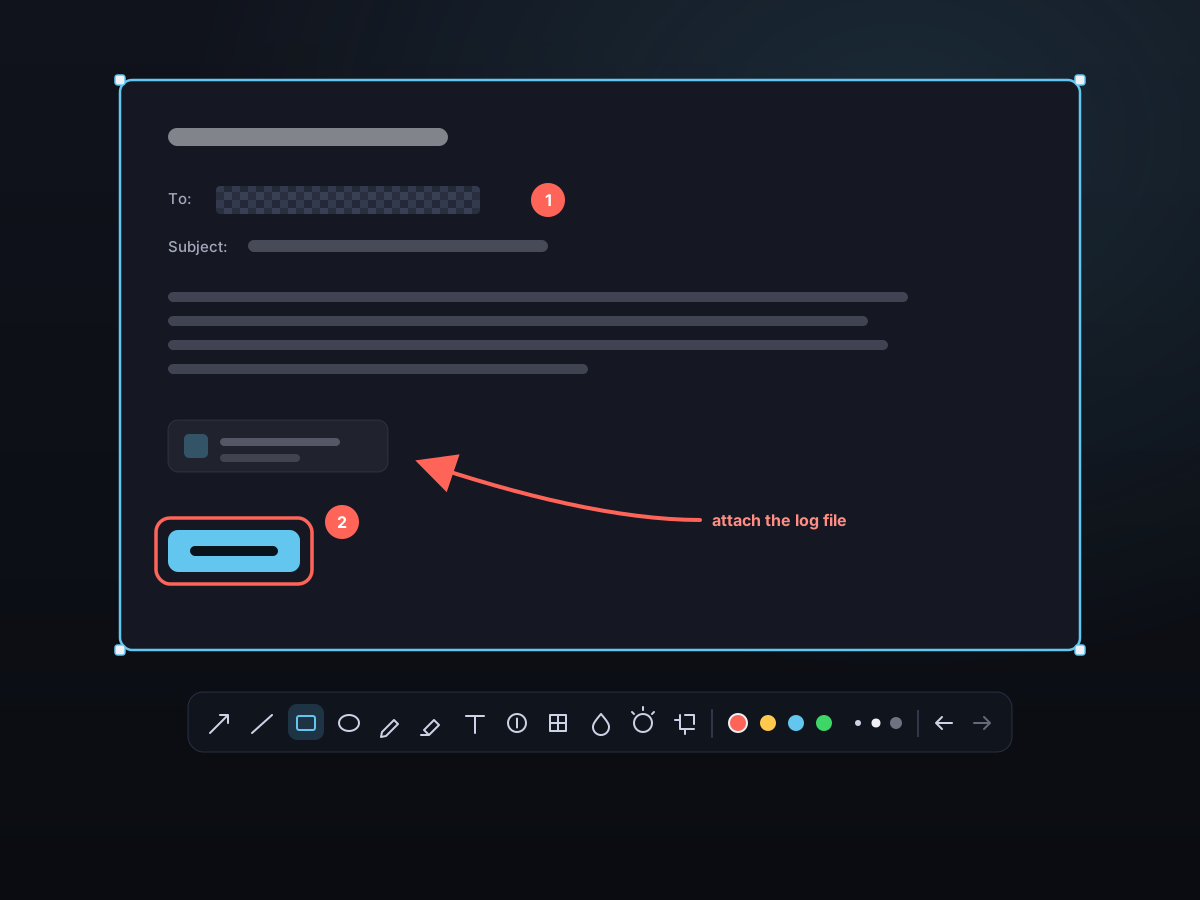
No round-trip through Preview or an image editor. Fourteen tools cover the ground — point, label, number, and redact — with colors, line widths, and undo/redo the whole way.
- Arrow, line, rectangle, ellipse, pen & highlighter
- Text labels and numbered step badges for walkthroughs
- Mosaic, blur, and spotlight to redact or focus attention
- Fine controls — per-shape fill opacity and a zoom magnifier for pixel-precise placement
- Crop, or re-adjust the region even while annotating
The text in your screenshot is yours
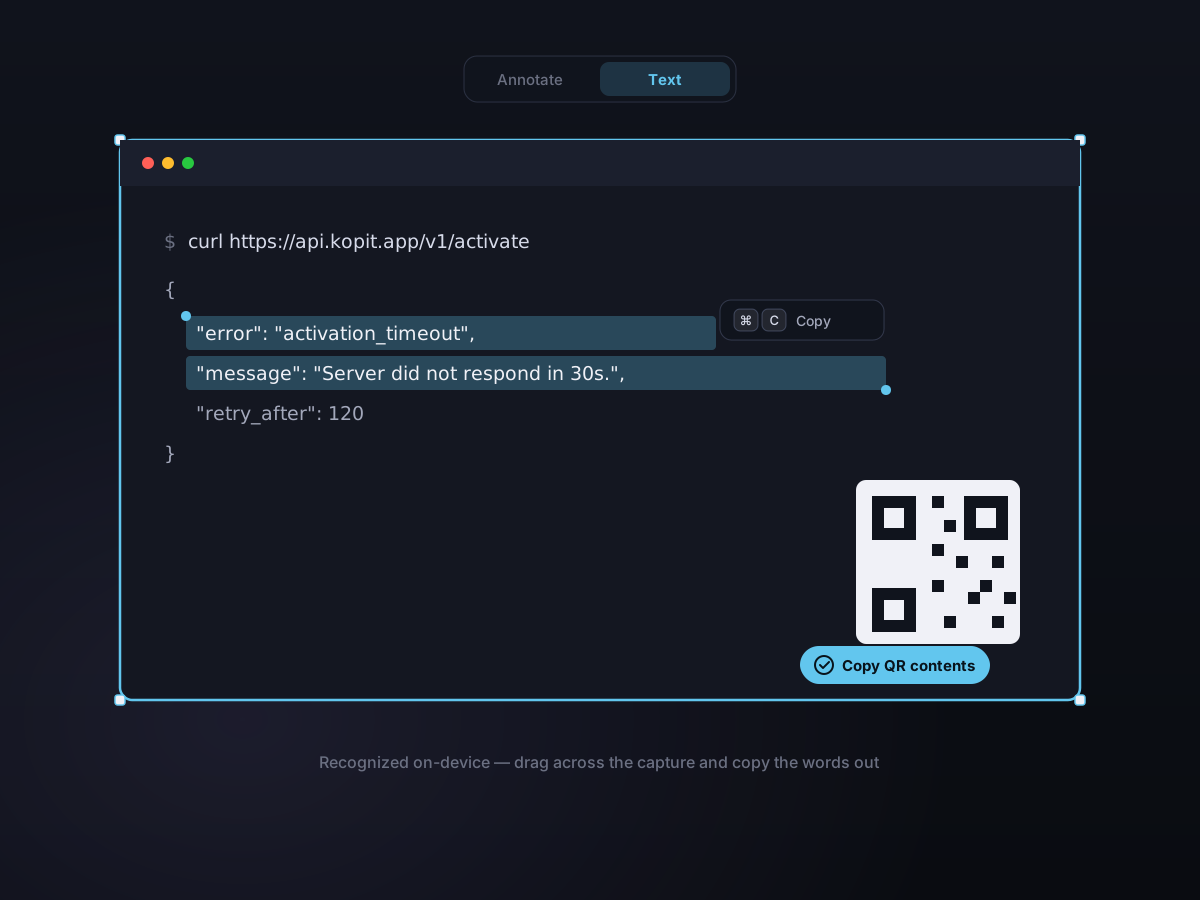
Kopit recognizes text in the capture on-device. Switch to text mode to drag-select and copy words straight off the screenshot — or use the dedicated capture-text shortcut to go from region to recognized text in one step, no editor at all.
- Live Text mode — select text in the capture and ⌘C it
- QR codes get a badge; click it to copy what's inside
- Capture Text shortcut — drag a region, get the words
Screenshots that don't get lost
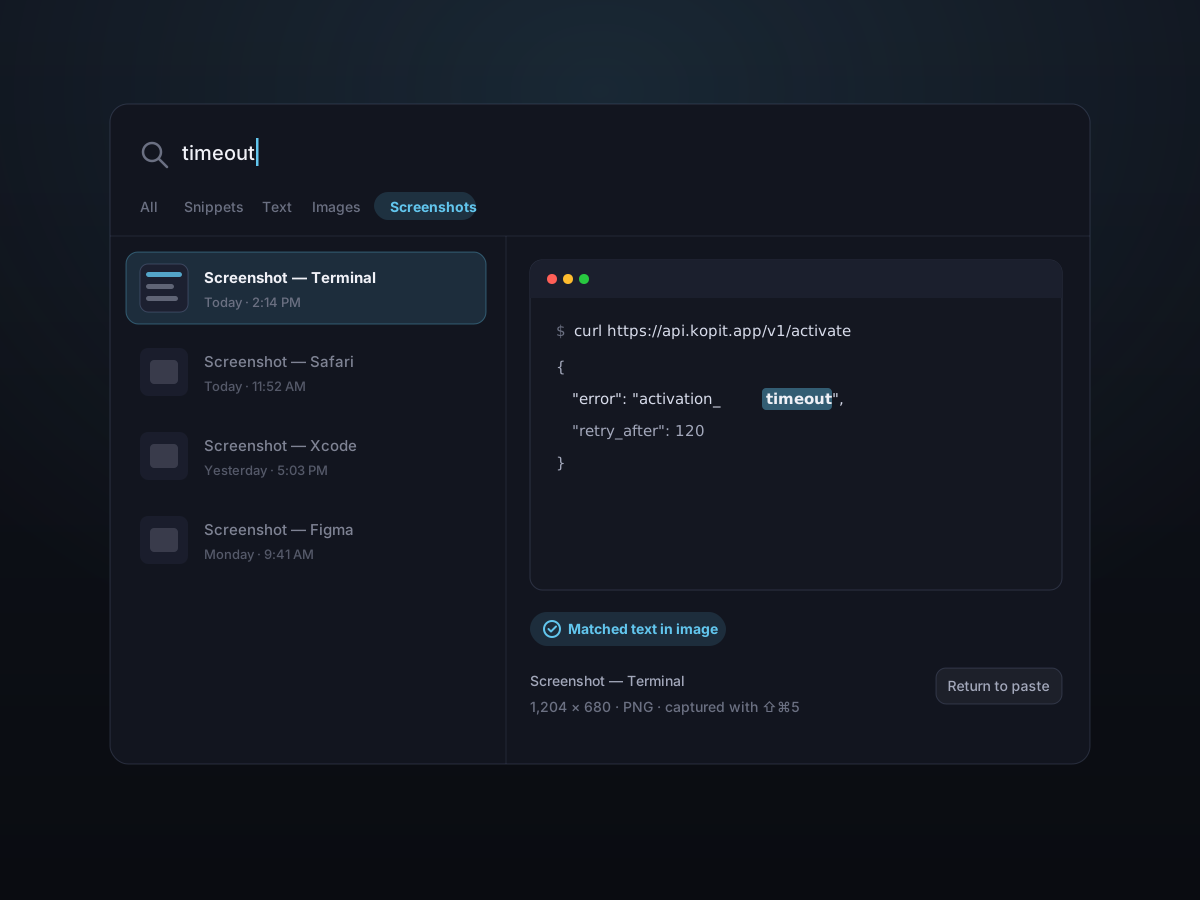
Most screenshots die in the Downloads folder. Kopit's land in your clipboard history with a thumbnail, get read on-device, and stay searchable by the words inside them — days later, type what it said and it's back.
- Every capture is kept in history automatically
- Search matches the text found inside your screenshots
- Filter them out fast with a Screenshot category tab
Pin it while you work
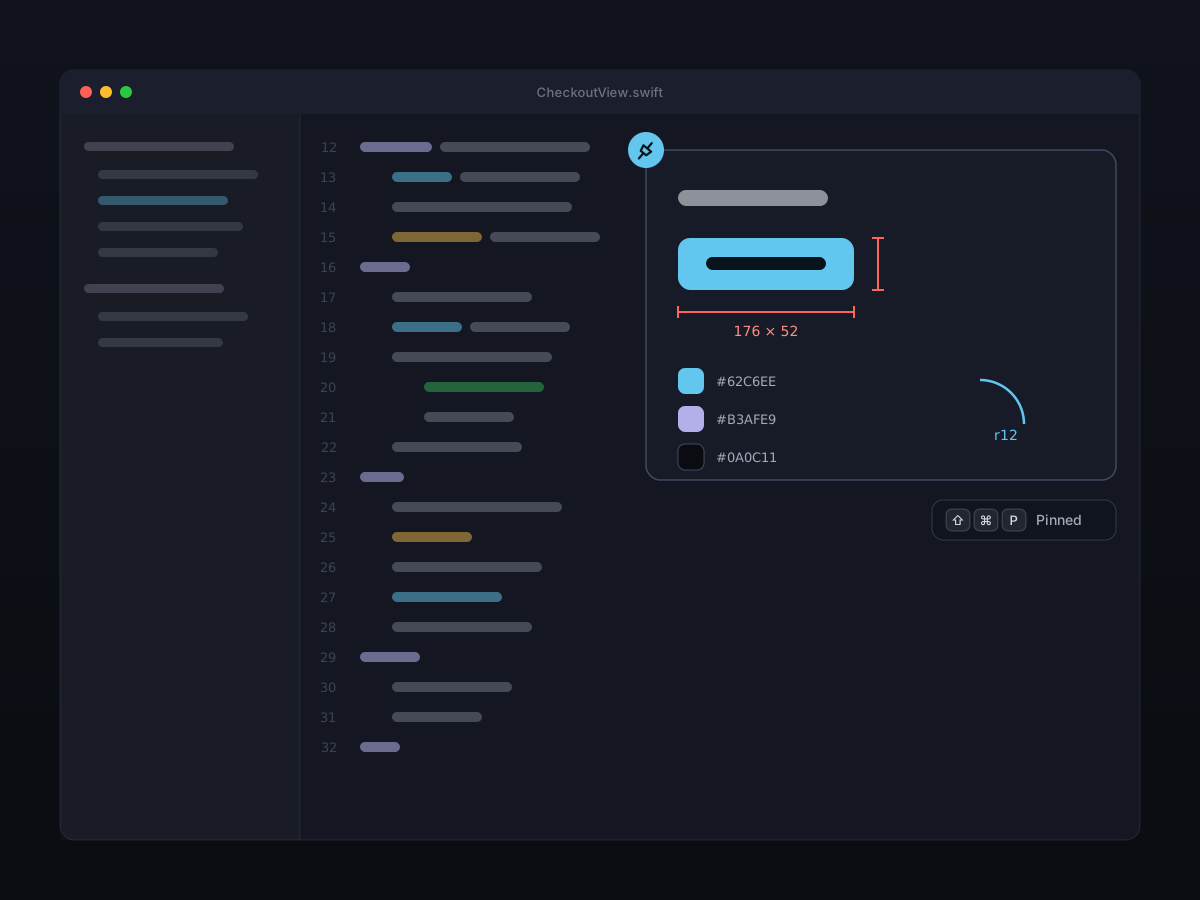
Need the screenshot in view while you act on it? Pin it straight from the capture toolbar and it floats above every window — powered by the same desktop pins you already know.
Good to know
- Capture modes
- Region, window, full screen, snap-to-element, and scrolling
- Default shortcut
- ⌘⇧2 (configurable)
- Annotation tools
- 14 — from arrows to blur, with undo/redo
- Text recognition
- On-device, plus QR code detection
- Output
- Clipboard, PNG/JPG file, or desktop pin
- Multiple displays
- Start a capture on any screen