Screen recording
Record the screen. Share it in seconds.
Drag out a region or pick a window, hit record, and Kopit captures it — with your microphone and system audio if you want — to a crisp MP4 or a shareable GIF. It lands in your clipboard history, copied and ready to paste, play, or pin, without a trip to the Finder.
⌃⇧2One shortcut to start recording (configurable). Press it again to stop.
How it works
- 1
Choose what to record
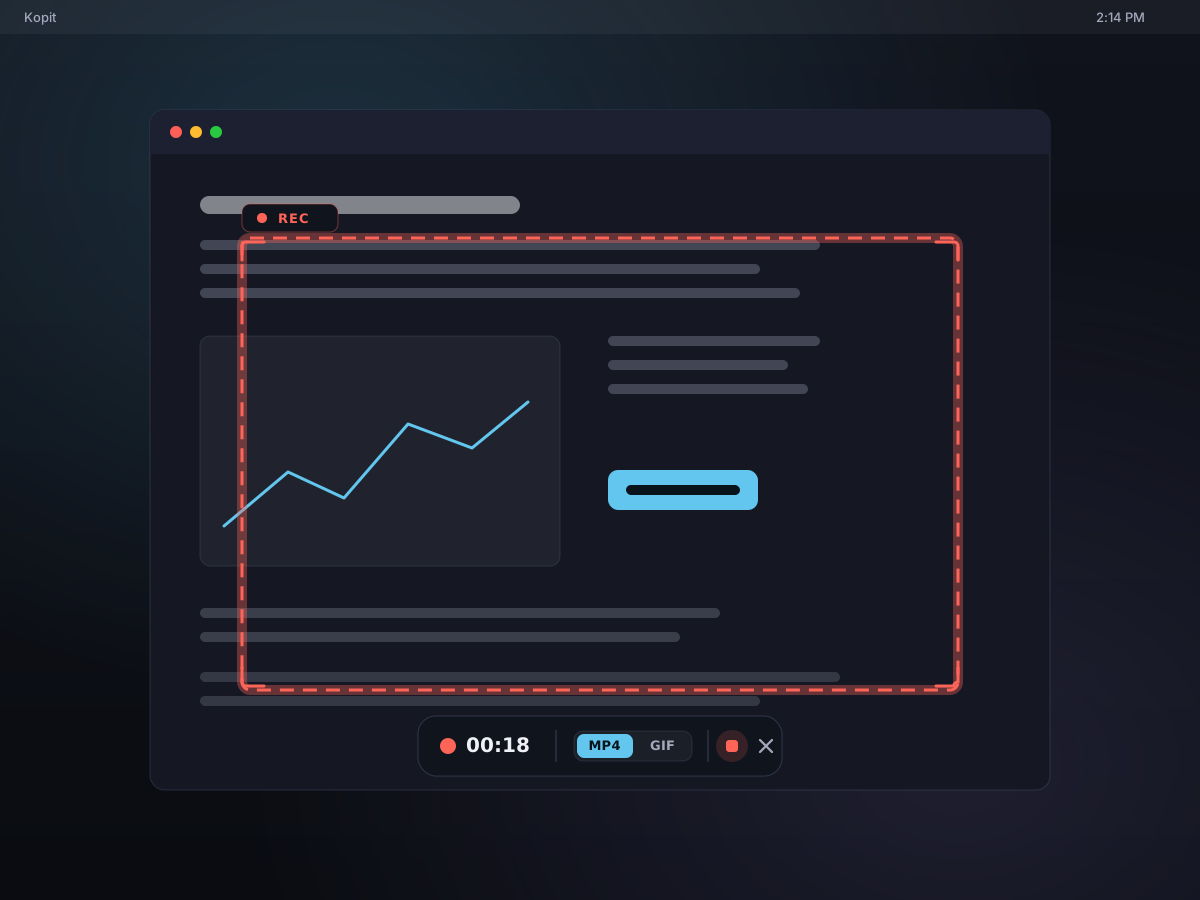
Press ⌃⇧2, then drag out a region, hover and click a window, or grab the whole screen — on any of your displays. A short countdown gives you time to get ready.
- 2
Record with a control bar in reach
A floating bar shows the elapsed time and lets you switch between MP4 and GIF. Kopit's own windows stay out of the frame, so what you record is exactly what you meant.
- 3
Stop and it's already copied
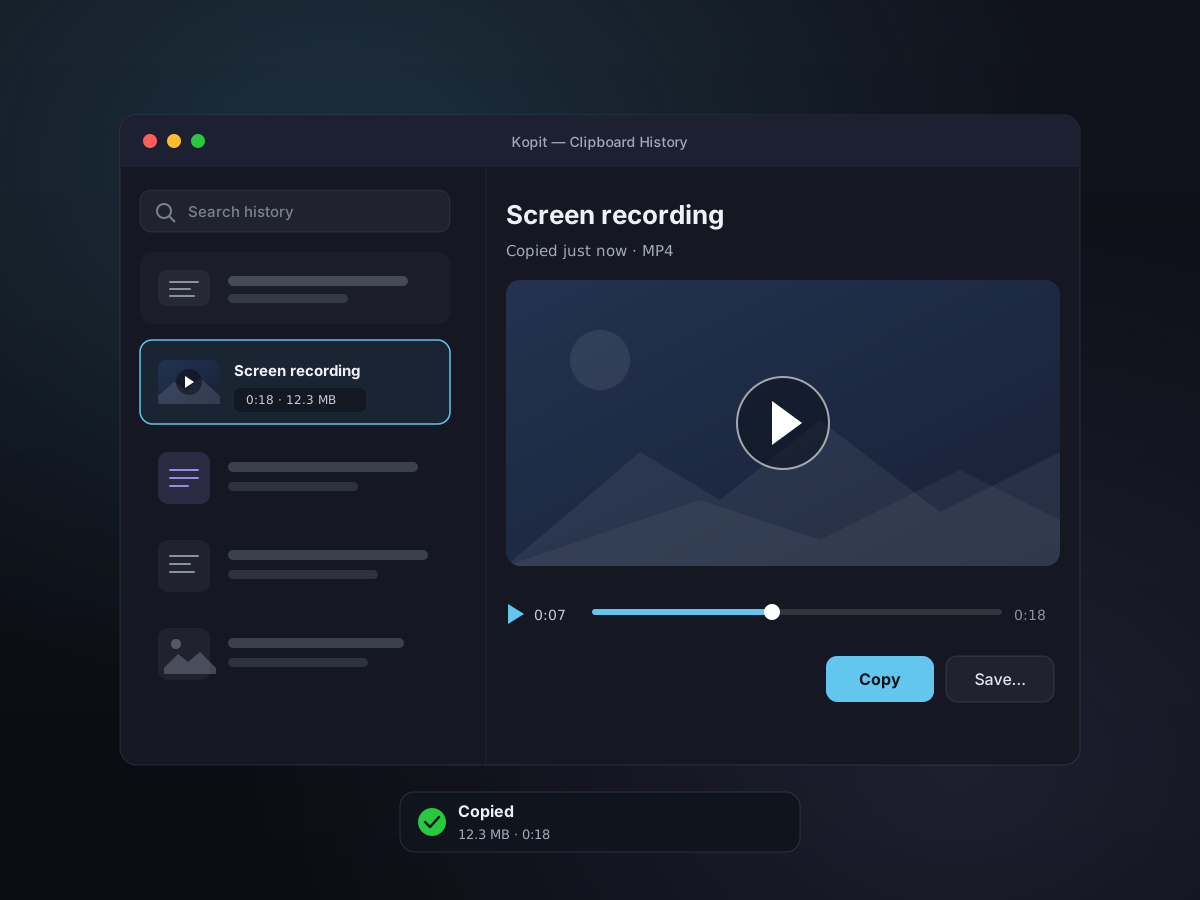
Press the shortcut again to stop. The file is written, copied to the clipboard, and added to your history — with a thumbnail, duration, and size. Paste it straight into a message.
MP4 for quality, GIF for anywhere
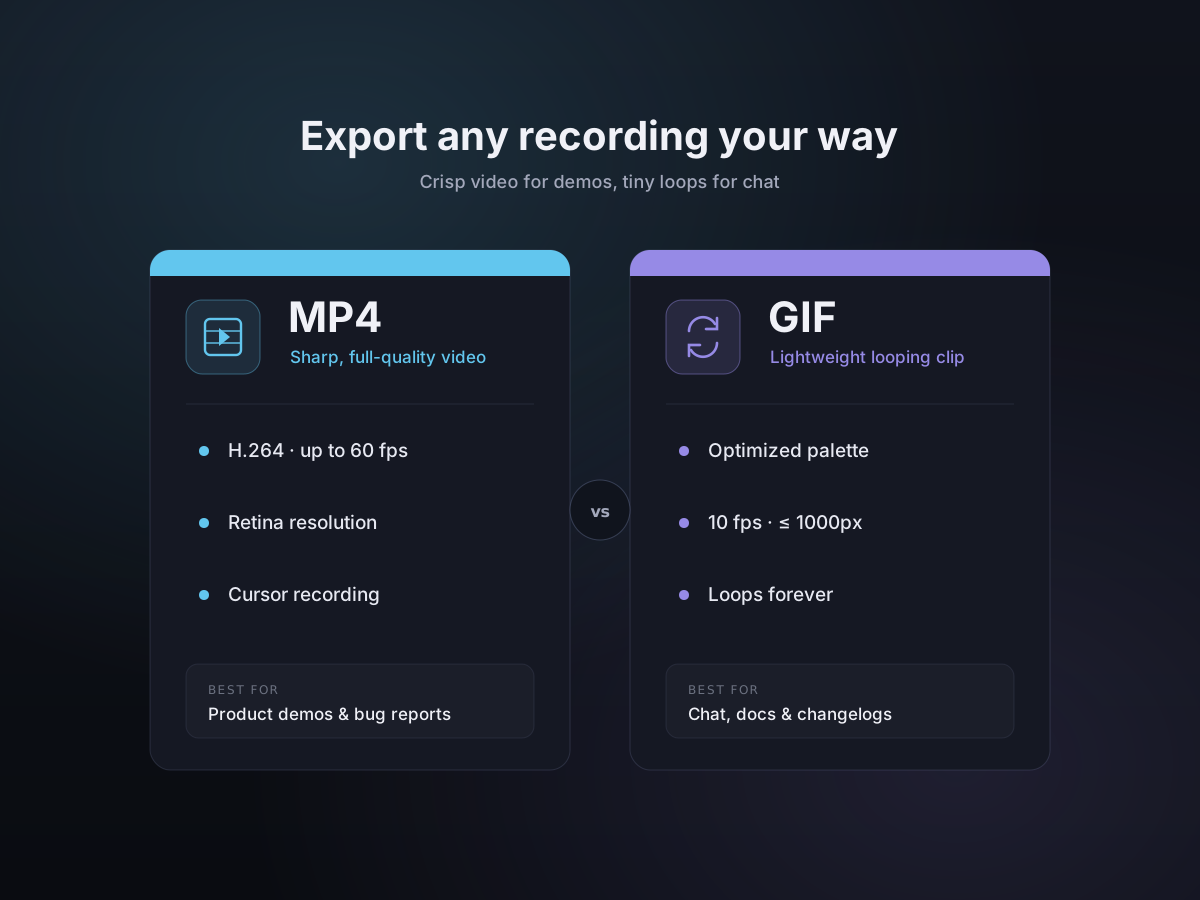
Record to H.264 MP4 with hardware encoding for smooth, low-overhead capture — or to an optimized GIF that drops straight into a chat or an issue. Pick the format on the control bar, before or after you record.
- MP4 — H.264 hardware encoding, up to 60 fps, Retina resolution
- GIF — optimized palette with dithering, loops forever
- Record the cursor, or leave it out
- Standard 1× or full Retina 2× — your call
Capture the sound, too
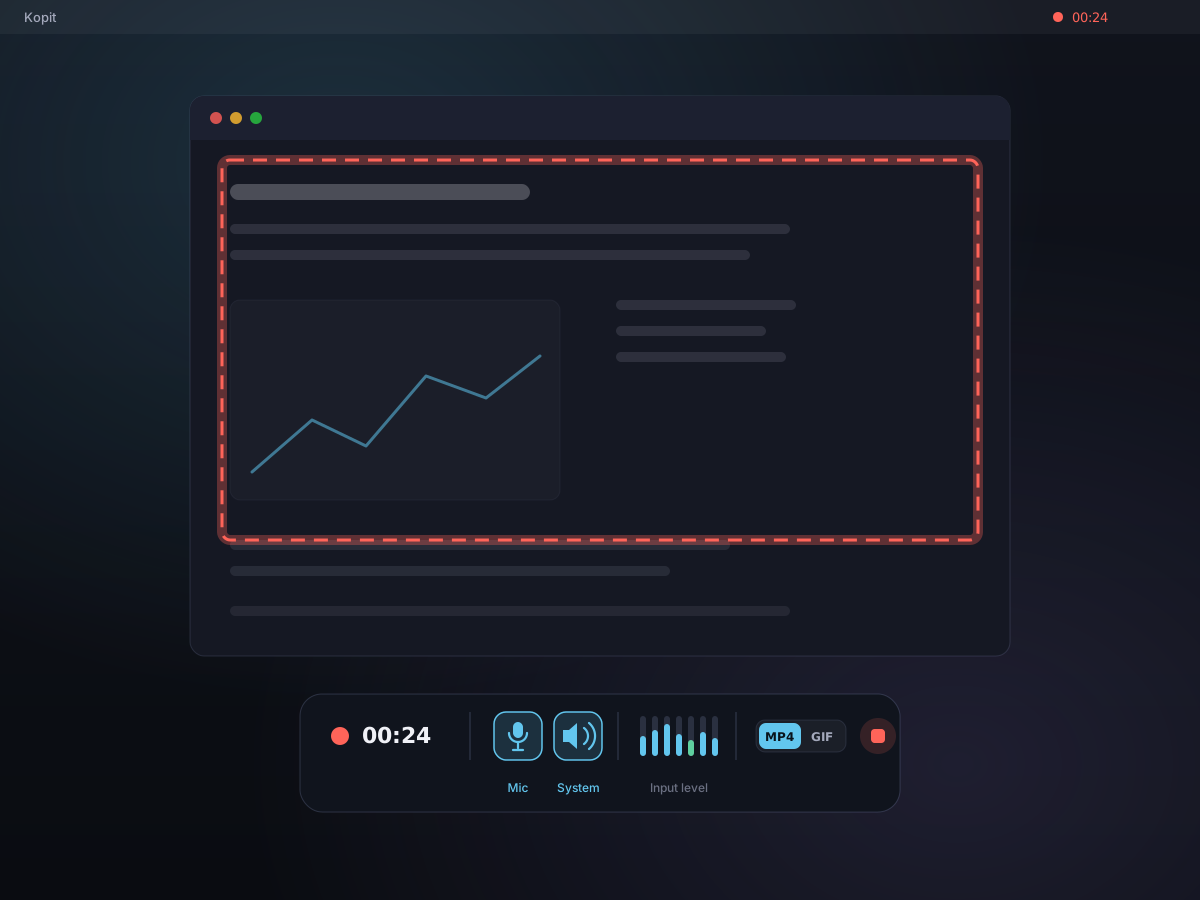
Record with audio when it matters. Turn on your microphone to narrate, capture your Mac's system audio to catch what's playing, or use both — Kopit mixes them into a single track in the finished MP4. A live level meter on the control bar shows your input is actually coming through.
- Microphone and system audio — either, both, or neither
- Down-mixed into one clean audio track in the MP4
- A live input-level meter right on the recording bar
- Off by default — nothing is captured until you turn it on
A control bar that stays out of the shot
The region gets a subtle breathing border so you always know what's being captured. The floating control bar — timer, format toggle, stop, and cancel — never appears in the recording itself, and the menu bar shows a red dot with a live timer as a fallback stop.
- Elapsed timer and one-tap stop or cancel
- Kopit's UI is excluded from the capture automatically
- Menu-bar red dot stops a recording hidden behind full-screen apps
- Crash-safe MP4 — the file stays playable even if the app is killed
Recordings that don't get lost
Every recording lands in your clipboard history as a file — with a poster-frame thumbnail and a badge for its length and size. Play MP4s right in the preview pane, watch GIFs loop, and paste the file anywhere with a keystroke.
- Auto-saved to your Movies folder (configurable)
- Copied to the clipboard so you can paste it immediately
- Play and scrub in the preview pane
- Pin a recording to the desktop to keep it in view
Good to know
- Capture modes
- Region, window, and full screen
- Formats
- MP4 (H.264) and GIF
- Audio
- Microphone + system audio — off by default
- Latest update
- Microphone and system-audio capture, with a live level meter (July 2026)
- Frame rate
- MP4 up to 60 fps · GIF up to 15 fps
- Default shortcut
- ⌃⇧2 (configurable)
- Cursor
- Recorded by default — can be turned off
- Output
- Clipboard, MP4/GIF file, or desktop pin