Scrolling screenshot
Capture the whole thing, not just the screen.
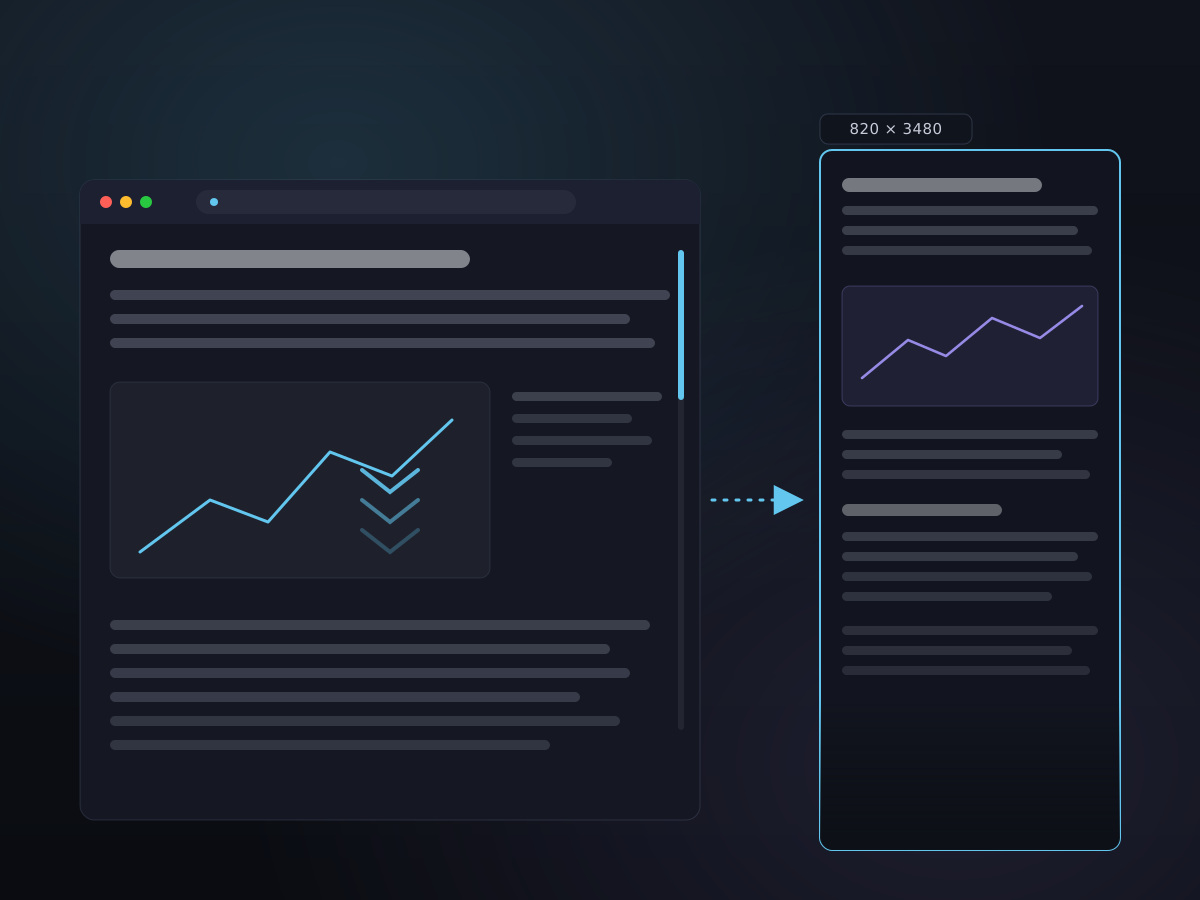
Some things don't fit on one screen — a long article, a thread, a full invoice. Pick the area, scroll, and Kopit stitches every frame into one seamless long image. No browser extension, no accessibility hacks.
Start it from the menu bar, or bind your own shortcut in Settings.
How it works
- 1
Pick the area
Start a scrolling capture, then drag out the region or click a window — the same selection you already know from screenshots. Fine-tune it with the handles.
- 2
Scroll to capture
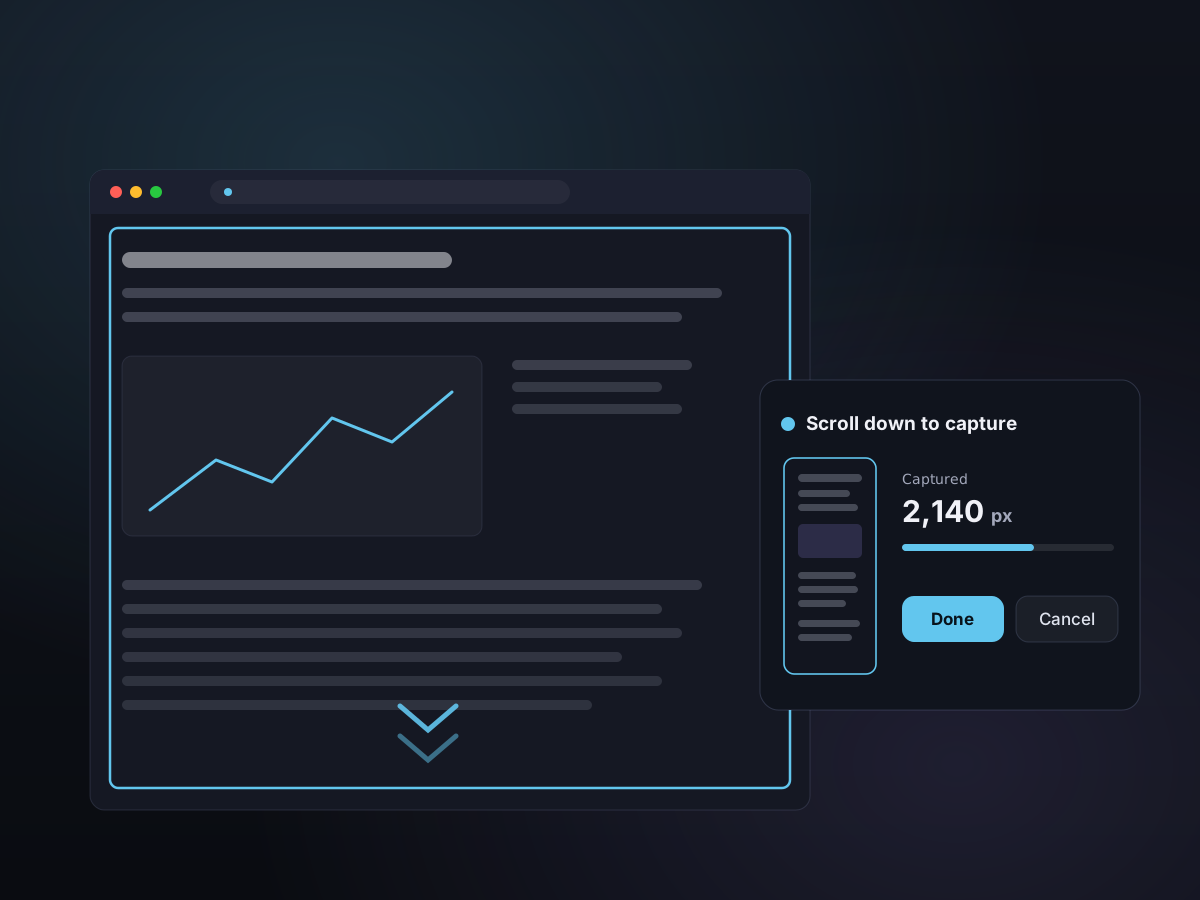
The frozen overlay lifts so you can see the content. Scroll down and a floating HUD shows the stitched preview growing and how much you've captured so far.
- 3
Finish and use it
Click Done — or let Kopit detect you've reached the end. The finished long image goes to the annotation editor and into your history, ready to copy, save, or pin.
Seamless stitching, frame by frame
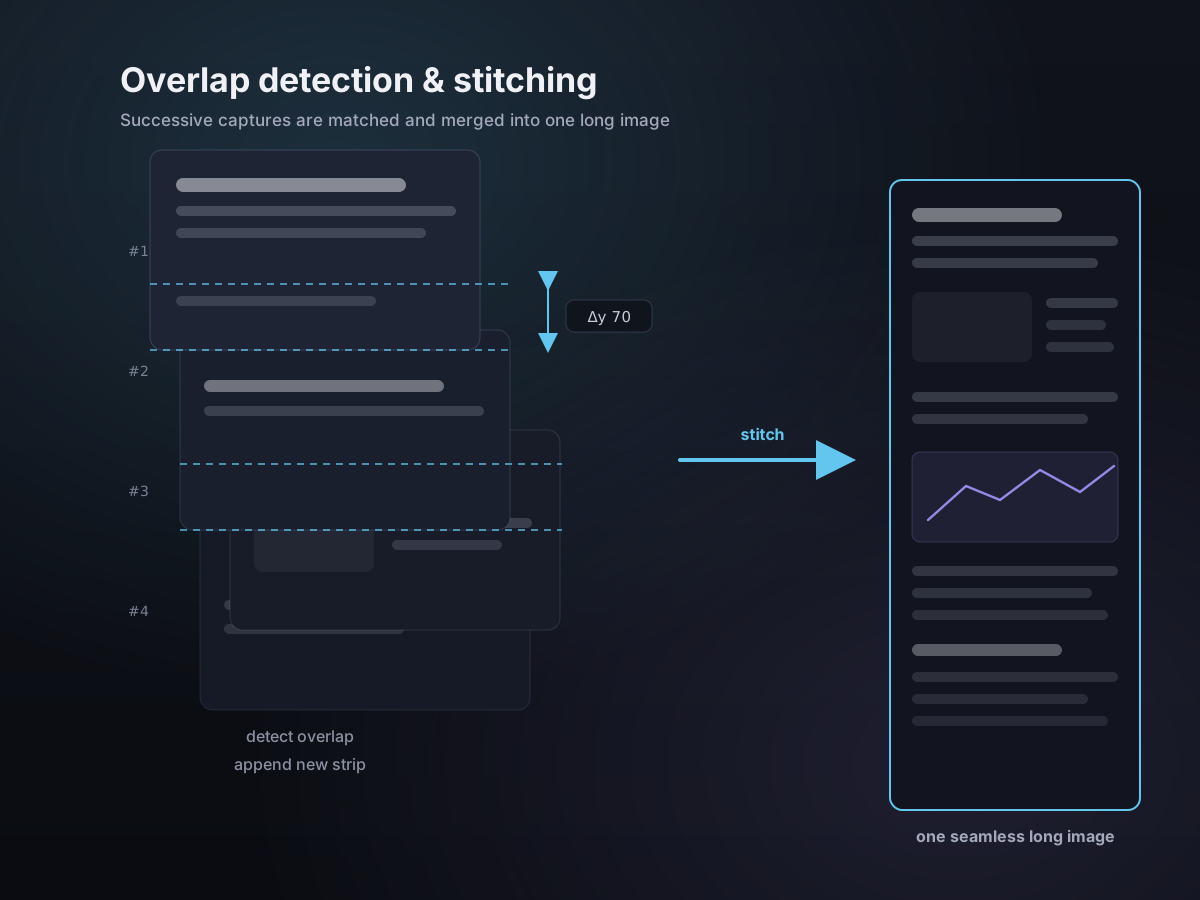
As you scroll, Kopit compares each frame to the last, measures exactly how far the content moved, and appends only the newly revealed strip. The result is one continuous image with no seams and no duplicated rows.
- Detects the scroll offset between frames and aligns them
- Only new content is appended — nothing is captured twice
- Sticky headers and toolbars are recognized, not repeated
- A pure, tested stitching engine does the alignment
A live preview while you scroll
You're never guessing. A floating HUD sits beside the capture with a running thumbnail of the stitched result, the captured height, and Done and Cancel buttons — so you know exactly when you've grabbed everything.
- Live stitched thumbnail as the image grows
- Captured-height readout, updated in real time
- Finish manually, or stop automatically at the end
- Kopit's own windows never appear in the capture
Good to know
- Best for
- Web pages, documents, chats, long lists
- How it works
- Manual scroll — no accessibility permission needed
- Latest update
- New long-capture page and stitched-preview visuals added July 5, 2026
- Multiple displays
- Captures the viewport on any screen
- After capture
- Opens in the annotation editor
- Output
- Clipboard, PNG/JPG file, or desktop pin
- Text recognition
- On-device OCR, so the long image stays searchable