iCloud history sync
Your clipboard, on every Mac.
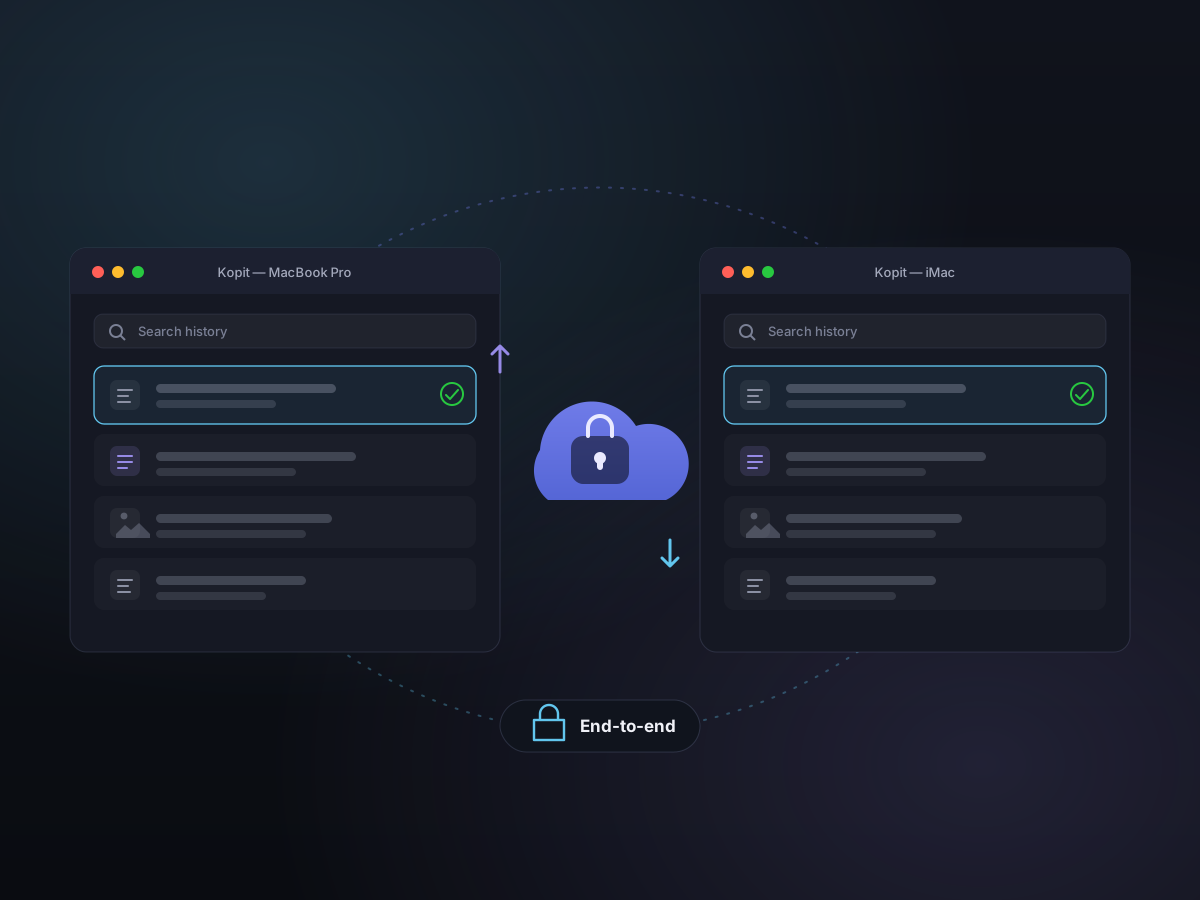
Turn on iCloud sync and the history you build on one Mac shows up on the others — the same clips, Snippets, pins, and edits. It runs through your own iCloud, encrypted so Kopit can't read it, and it's off until you switch it on.
Kopit Pro · requires macOS 14 or later and an iCloud account.
How it works
- 1
Sign in and turn it on
Sign in to iCloud, open Kopit's settings, and switch on sync. It's part of Kopit Pro and off by default, so nothing leaves your Mac until you say so.
- 2
Your history fills in
Kopit syncs your clips, Snippets, pins, titles, and edits through your own iCloud. Open Kopit on another Mac and the same history is already waiting.
- 3
Paste anywhere, on any Mac
Search and paste on whichever Mac you're using. Large originals download the moment you preview or paste them, so everything's ready when you need it.
Encrypted, and yours alone
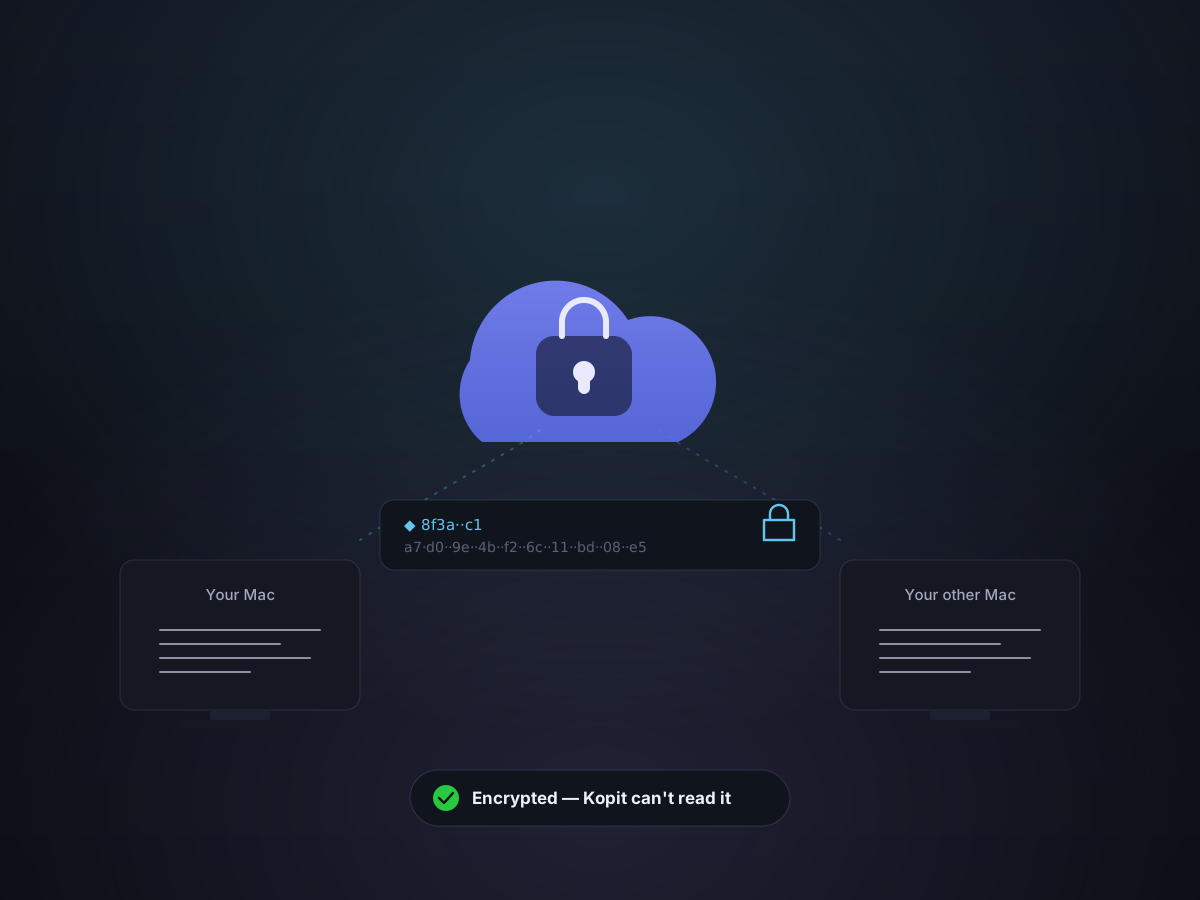
Sync runs through your own iCloud account — Kopit has no servers in the middle and can't read your data. Text and metadata are stored in iCloud's encrypted fields, and larger files are end-to-end encrypted by Kopit before they leave your Mac. Switch on Apple's Advanced Data Protection and everything is end-to-end encrypted, so not even Apple can read it.
- Runs through your own iCloud — no Kopit servers in the middle
- Original images, files, and recordings are end-to-end encrypted before upload
- End-to-end for everything with Apple's Advanced Data Protection
- Password-manager content is never captured, so it's never synced
Light on your iCloud storage
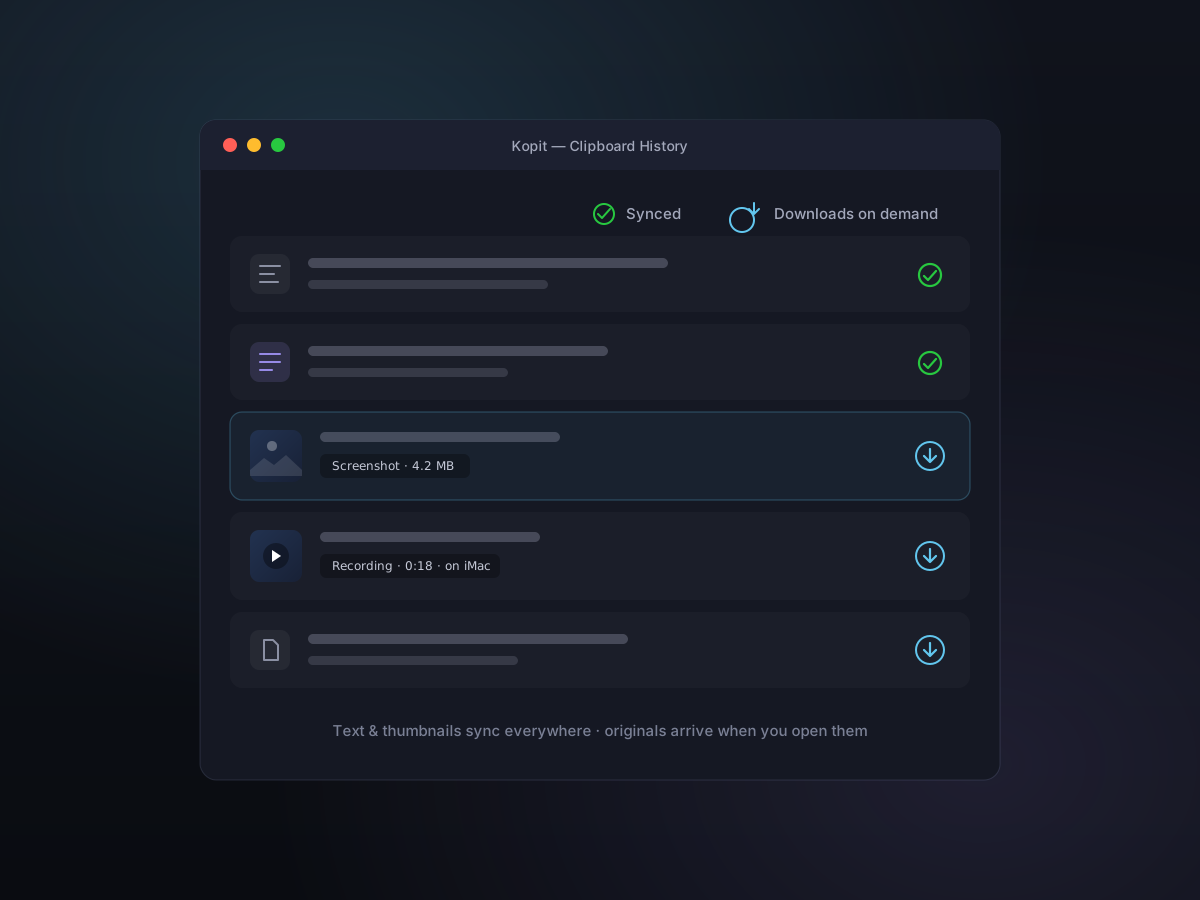
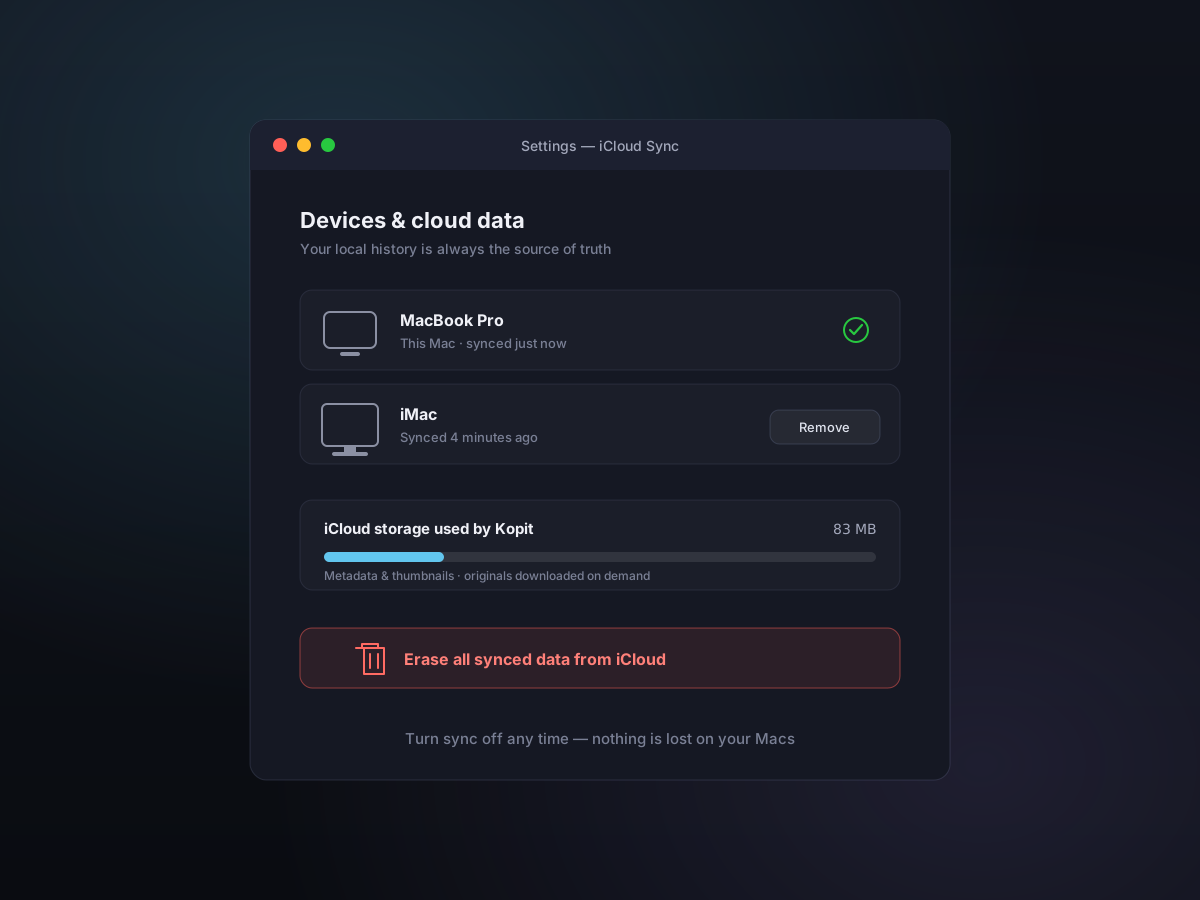
Sync is built to be frugal. Every item's text, metadata, and thumbnail syncs so your history looks complete everywhere, while heavy originals — full-resolution images, files, and screen recordings — download only when you actually open or paste them. Your free 5 GB of iCloud space goes a long way.
- Text, metadata, and thumbnails always sync
- Original images and files download on demand
- Screen recordings stay on their home Mac until you ask
- Push a specific recording or folder to every Mac by hand when you want it
You decide what syncs
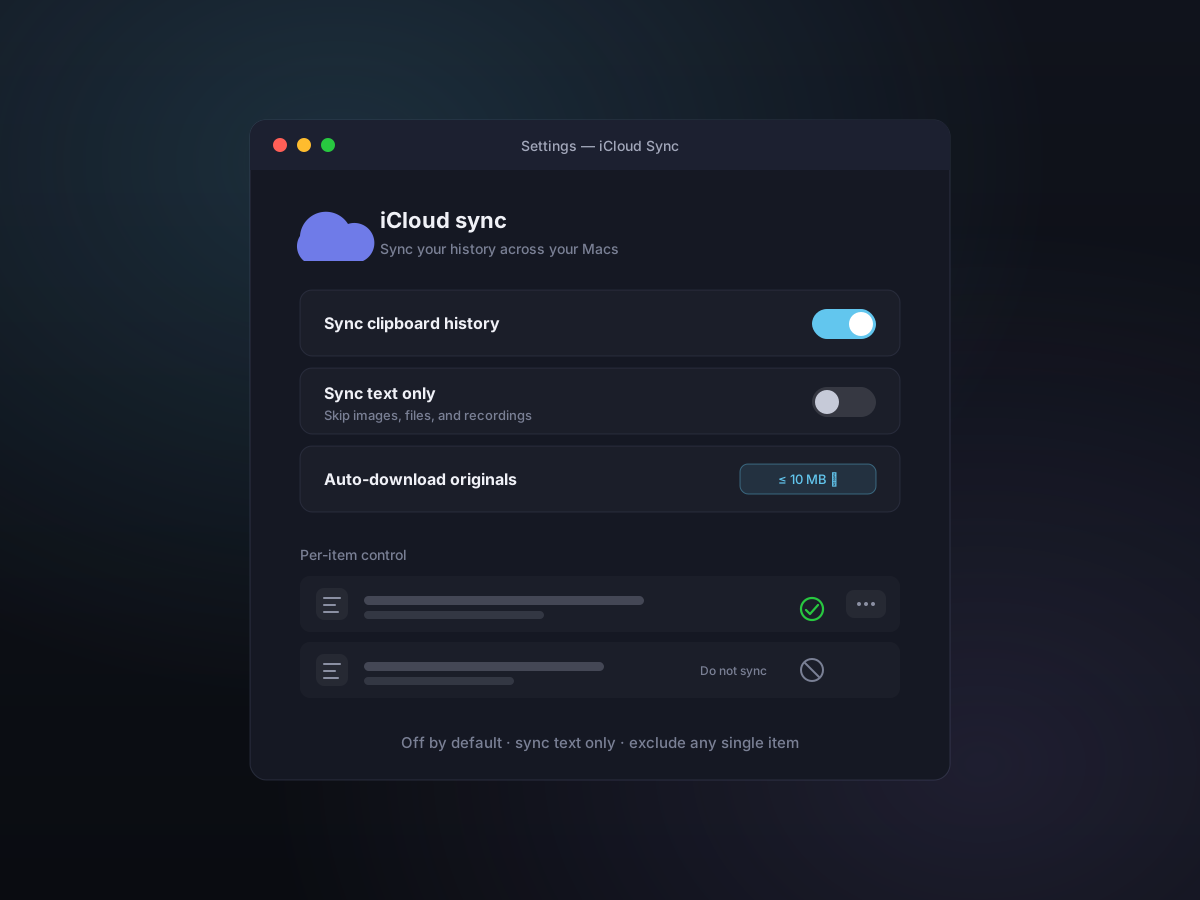
Sync is opt-in and stays under your control. Keep it text-only, exclude individual items you'd rather not sync, and see at a glance what's uploaded, what's local, and what's still on another Mac — right in the preview.
- Off by default — turn it on when you're ready
- Sync everything, or text only
- Mark any single item as do-not-sync
- Cloud status and upload progress shown on each item
Leave anytime, cleanly
Your local history is always the source of truth, so turning sync off leaves everything untouched on each Mac. Lost a Mac? Remove its data from the cloud. Done with sync? Erase everything from iCloud in one tap.
- Your local history is always the source of truth
- Erase all synced data from iCloud in one tap
- Remove a specific device's data from the cloud
- Turn sync off without losing anything locally
Good to know
- Availability
- Kopit Pro (included with the one-time purchase)
- Requirements
- macOS 14 or later, signed in to iCloud
- Default
- Off — sync is opt-in
- Where data lives
- Your own iCloud account (Apple CloudKit)
- Encryption
- Encrypted; end-to-end with Advanced Data Protection
- Kopit servers
- None — Kopit can't read your synced data
- Large files
- Originals and recordings download on demand
- Control
- Text-only mode, per-item exclusions, one-tap cloud erase
- Scope
- Mac to Mac, across the Apple ecosystem