Text expansion
Type less. Say more.
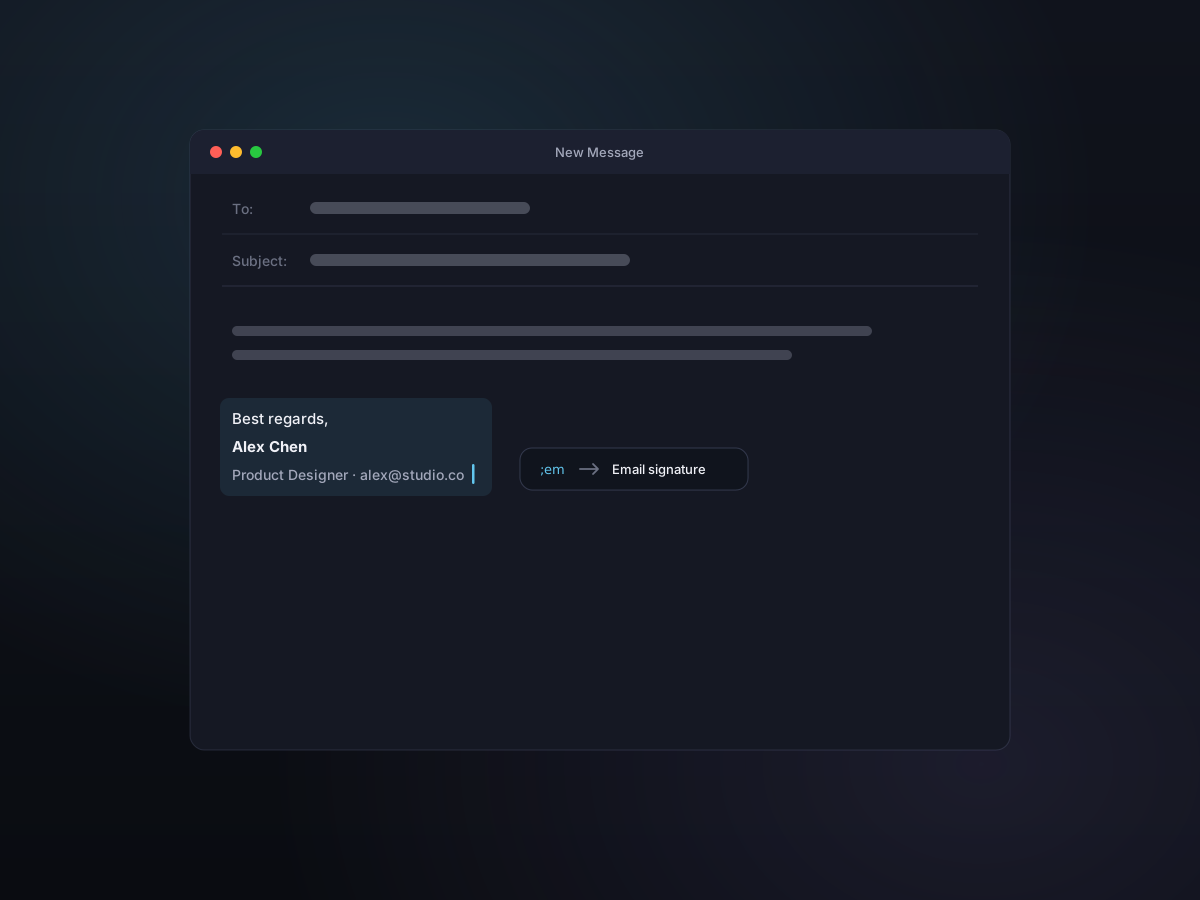
Give any Snippet a short abbreviation, then type it in any app to drop in your full text — signatures, addresses, replies, code, even images and files.
Works system-wide, in any app, with a single configurable prefix.
How it works
- 1
Save a Snippet
Turn any clipboard item or typed text into a Snippet with Command-S, or add one directly in Settings.
- 2
Give it an abbreviation
Assign a trigger like ;em, ;addr, or ;sig. Kopit uses a single global prefix (default ;) so triggers never fire by accident.
- 3
Type it anywhere
In any app, type your abbreviation and Kopit instantly replaces it with the saved content — no menus, no mouse.
Expand more than plain text
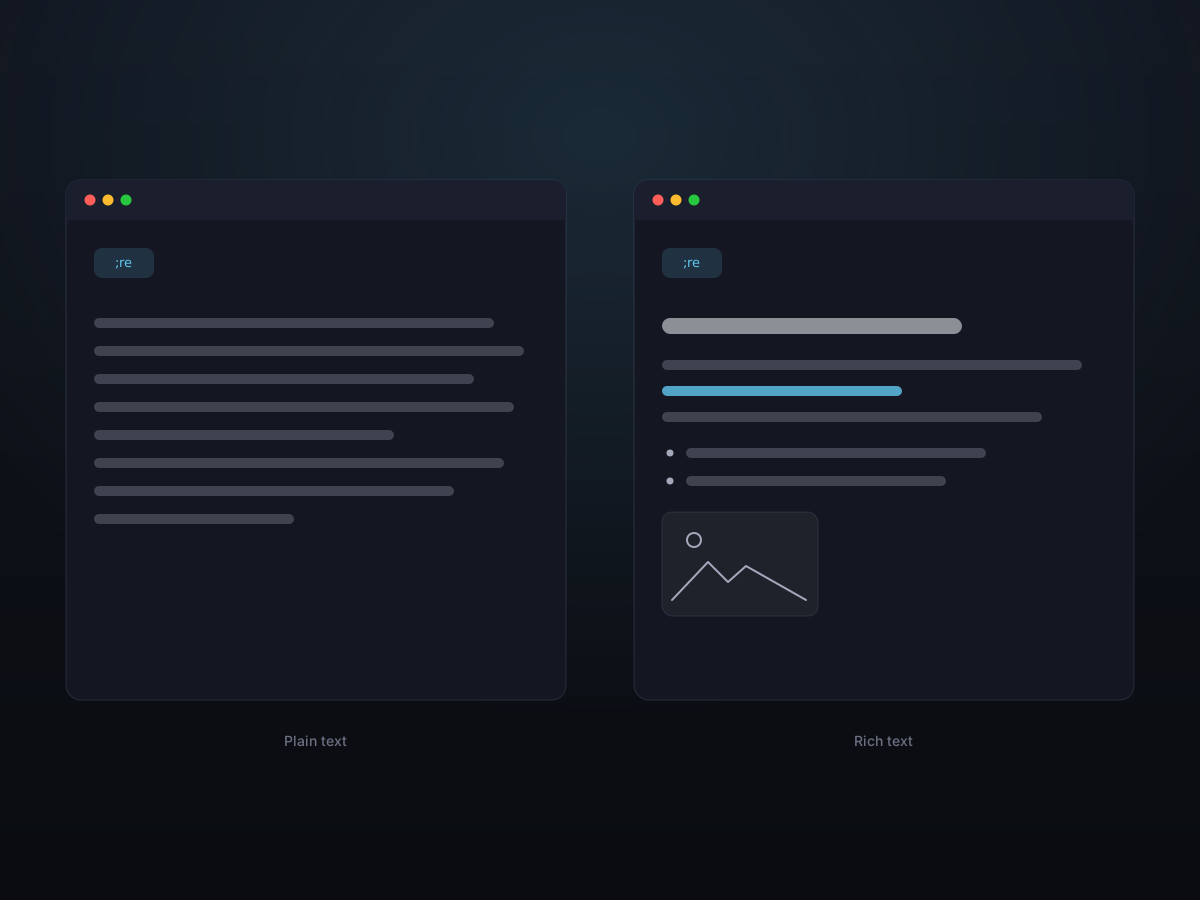
Snippets aren't limited to a line of text. A single abbreviation can insert a formatted block, a reusable image, or a file — whatever you saved.
- Plain text — signatures, emails, addresses, boilerplate
- Rich text — formatted replies and templates
- Images & files — logos, attachments, reference assets
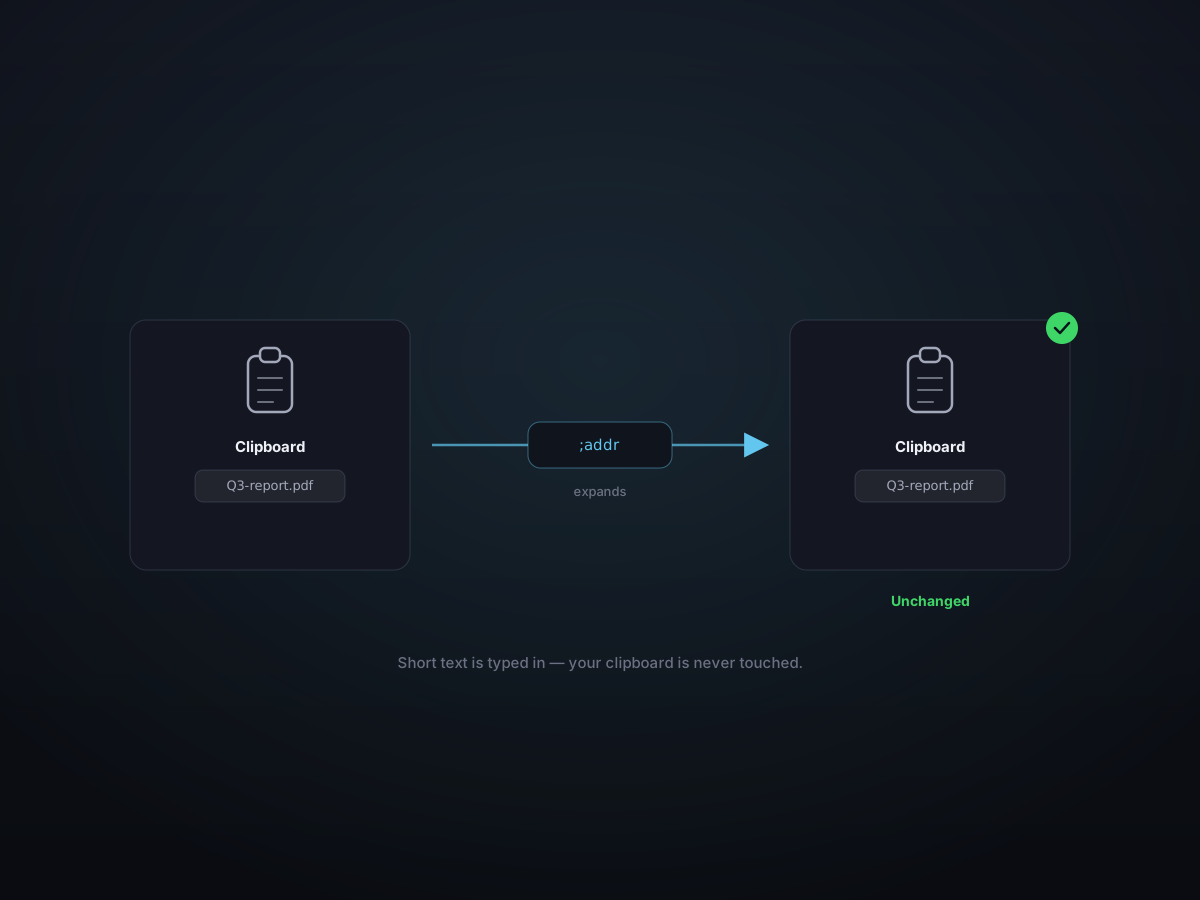
Doesn't touch your clipboard when it doesn't need to
Short text is typed in directly, so expanding a Snippet never overwrites what you last copied or clutters your history. Longer or rich content falls back to a clean paste that Kopit excludes from capture.
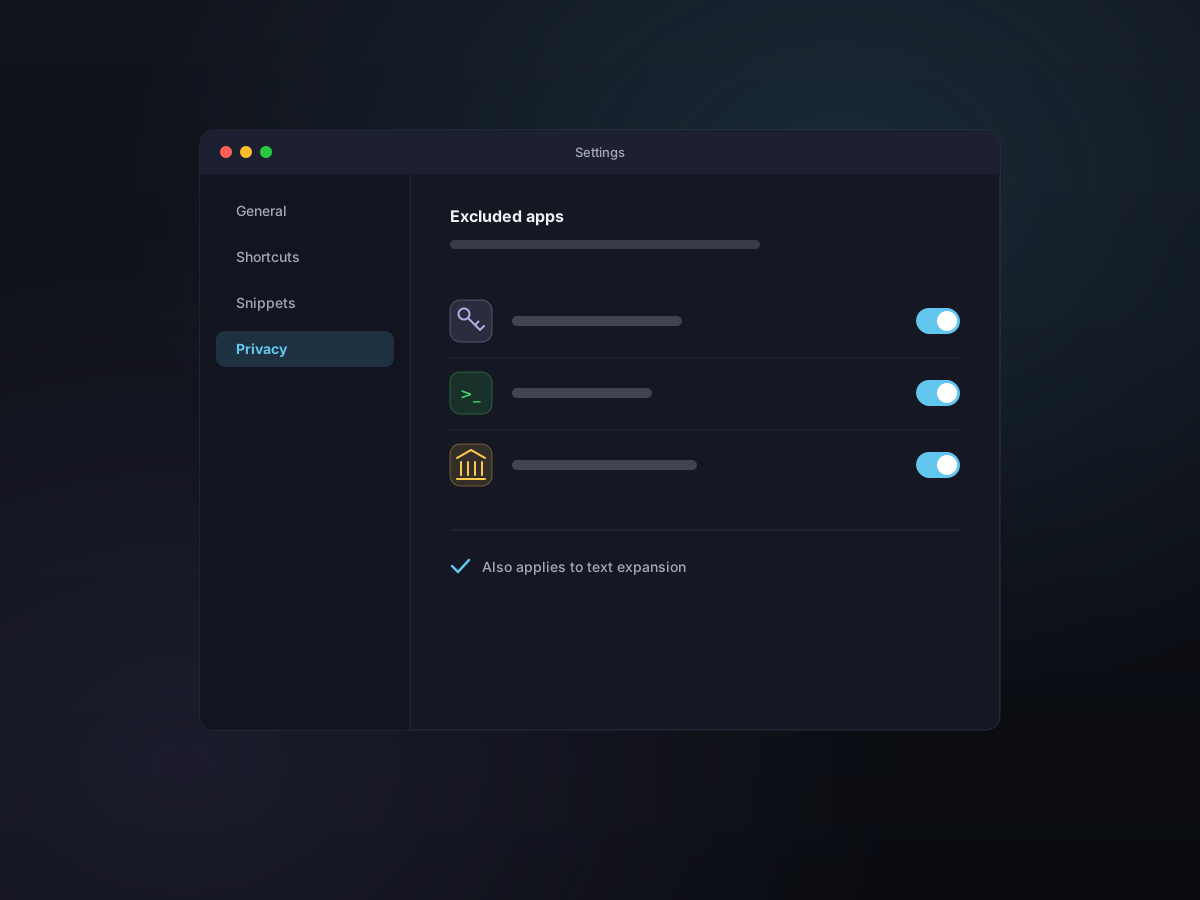
Stays private and under your control
Expansion runs entirely on your Mac. The apps you've excluded from clipboard capture are also excluded from text expansion, so it stays off in the places you want it off.
Good to know
- Where it works
- System-wide, in any app
- Default prefix
- ; (configurable)
- Trigger style
- Instant — expands the moment you finish typing
- Content types
- Plain text, rich text, images, and files
- Clipboard impact
- None for short text; clean paste otherwise
- Privacy
- Runs locally; respects your app exclusions