Custom categories
Your clipboard, your categories.
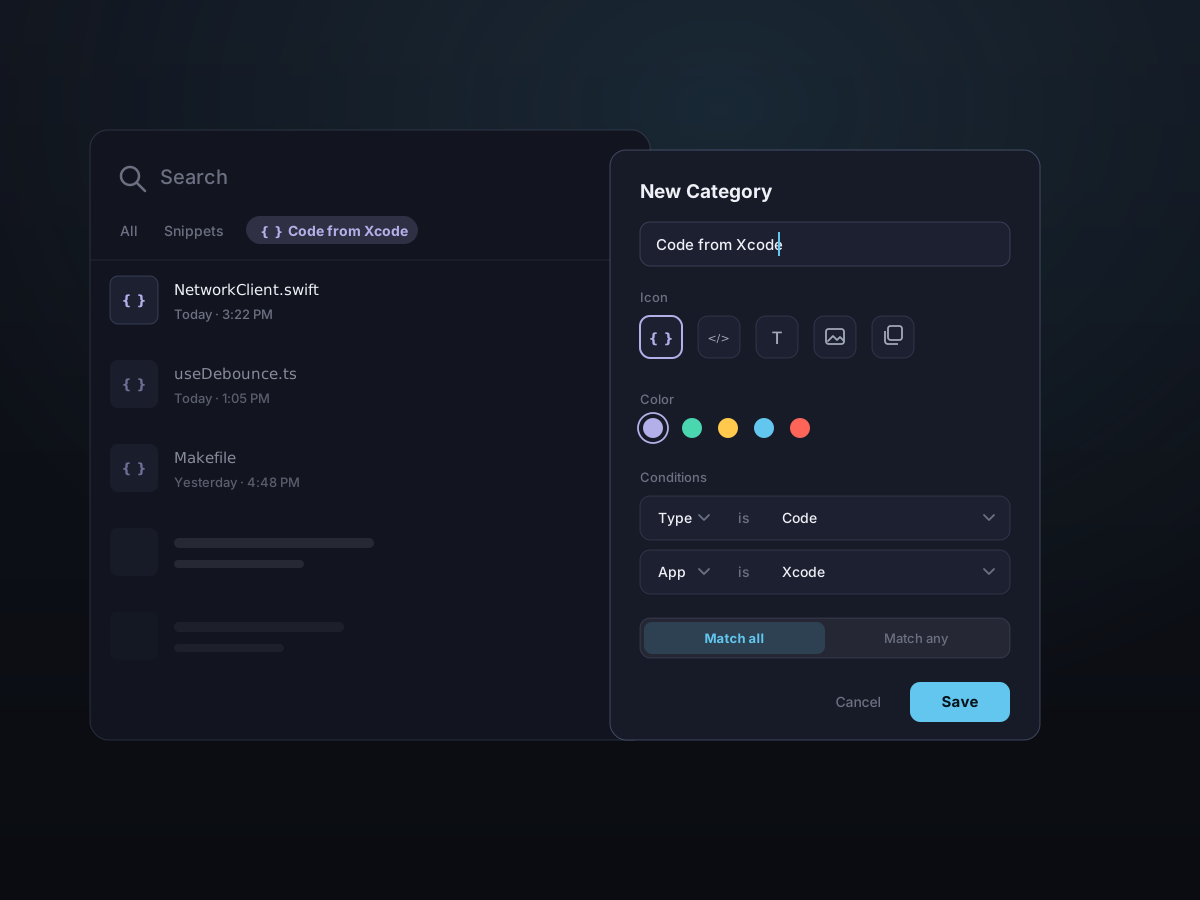
Go beyond the built-in tabs. Build your own filter tabs from simple rules — by type, source app, date, size, Snippet state, or the text inside a clip — or make an empty category and file clips into it by hand. Then switch between them with a click or the keyboard.
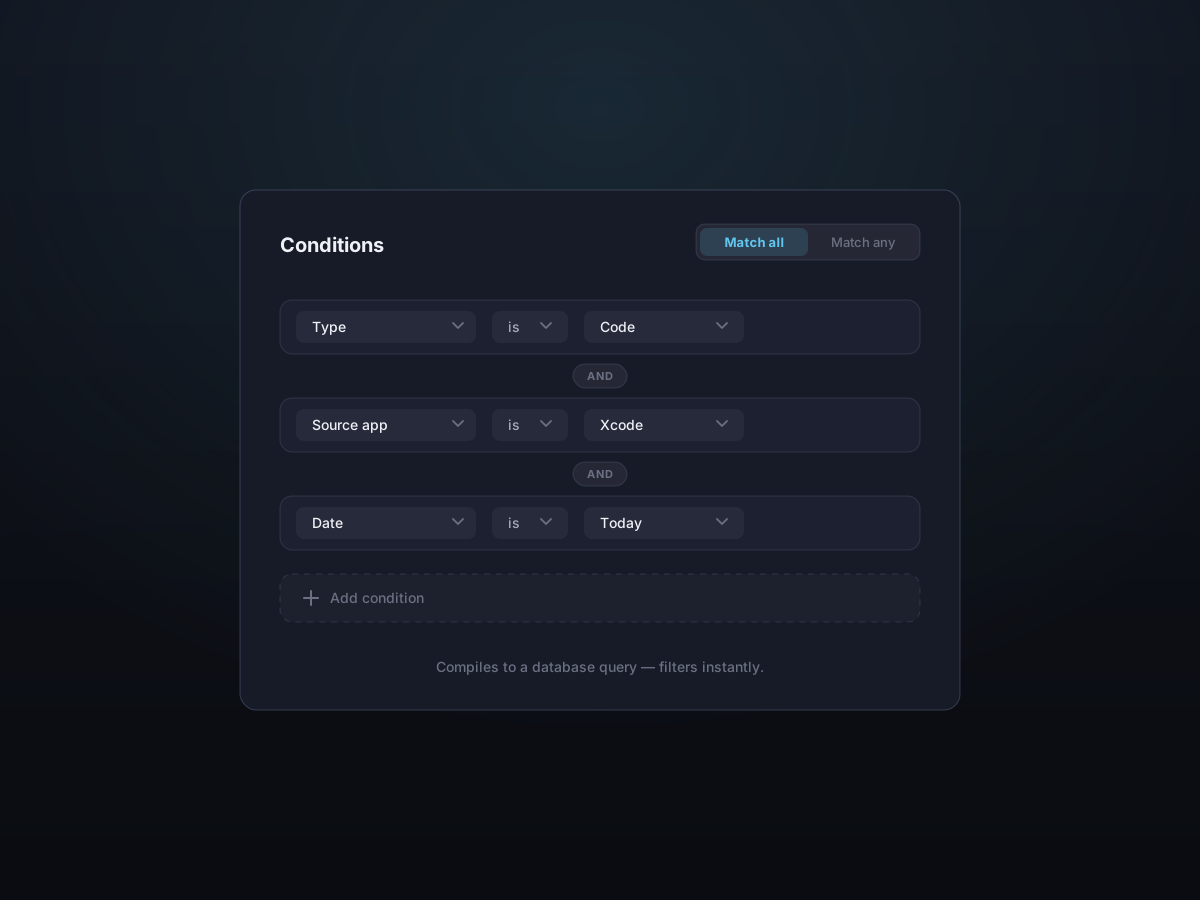
Combine conditions with match-all (AND) or match-any (OR).
How it works
- 1
Add a category
Open Settings > Categories and add a new tab. Give it a name, pick an SF Symbol icon, and choose an accent color so it stands out.
- 2
Stack your rules
Add conditions like content type, source app, date, size, contained text, or Snippet. Choose match-all (AND) or match-any (OR) to decide how they combine.
- 3
Use it in the panel
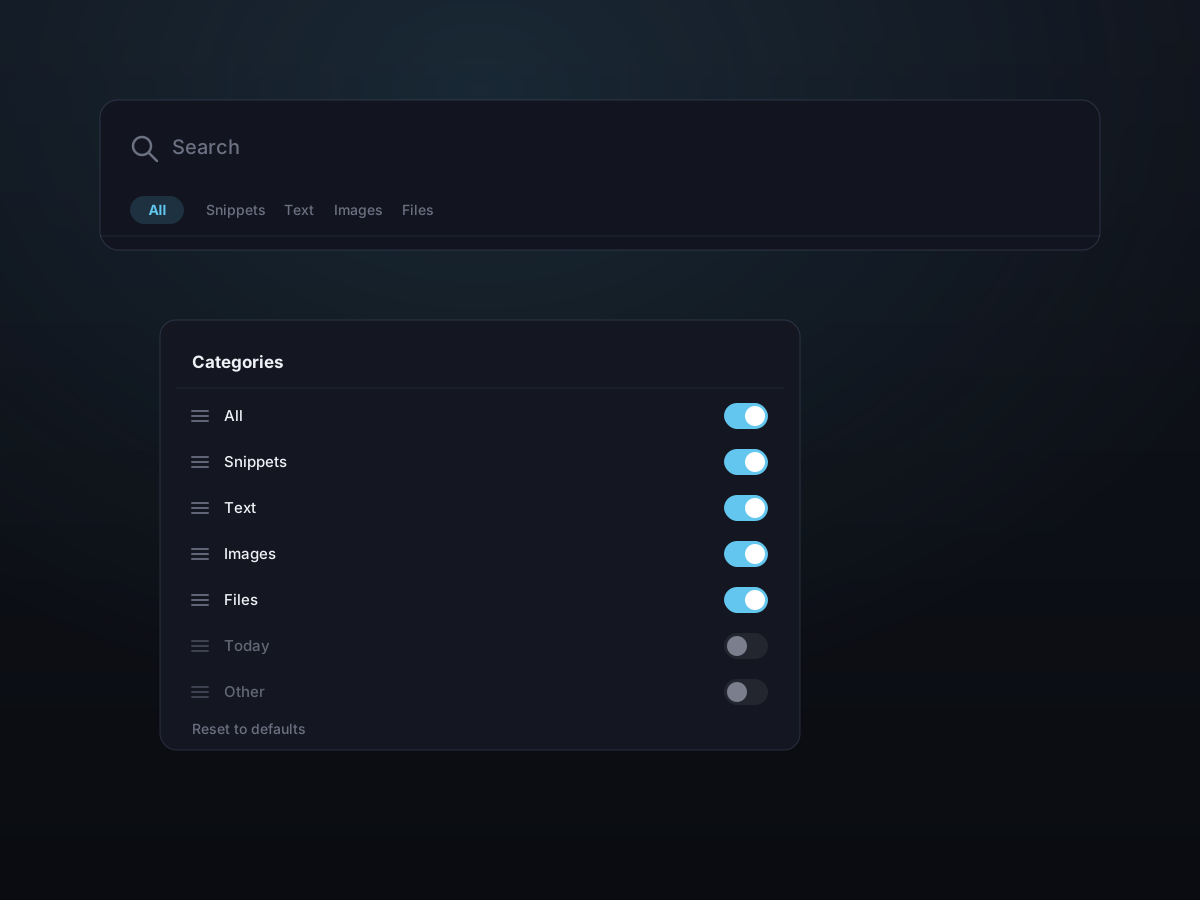
Your tab appears in the panel's top bar. Drag to reorder, hide the ones you don't use, and switch between tabs with a click or Tab / Shift-Tab.
Filter by more than just type
A category isn't limited to images or text. Mix as many conditions as you need — Kopit compiles them straight to a database query, so even a large history filters instantly.
- Content type — text, links, images, files, and finer kinds like code, color, or email
- Source app — only clips you copied from Xcode, Figma, or Safari
- Date & size — today, the last N days, or anything over a set size
- Contained text — a keyword that has to appear in the clip
Make each tab your own
Every category carries its own name, icon, and color, and the tab bar is yours to arrange. Keep the tabs you live in up front and tuck the rest away.
- Name each tab and give it an SF Symbol icon and accent color
- Drag tabs into exactly the order you want
- Hide tabs you don't use — and bring them back anytime

Or file clips by hand
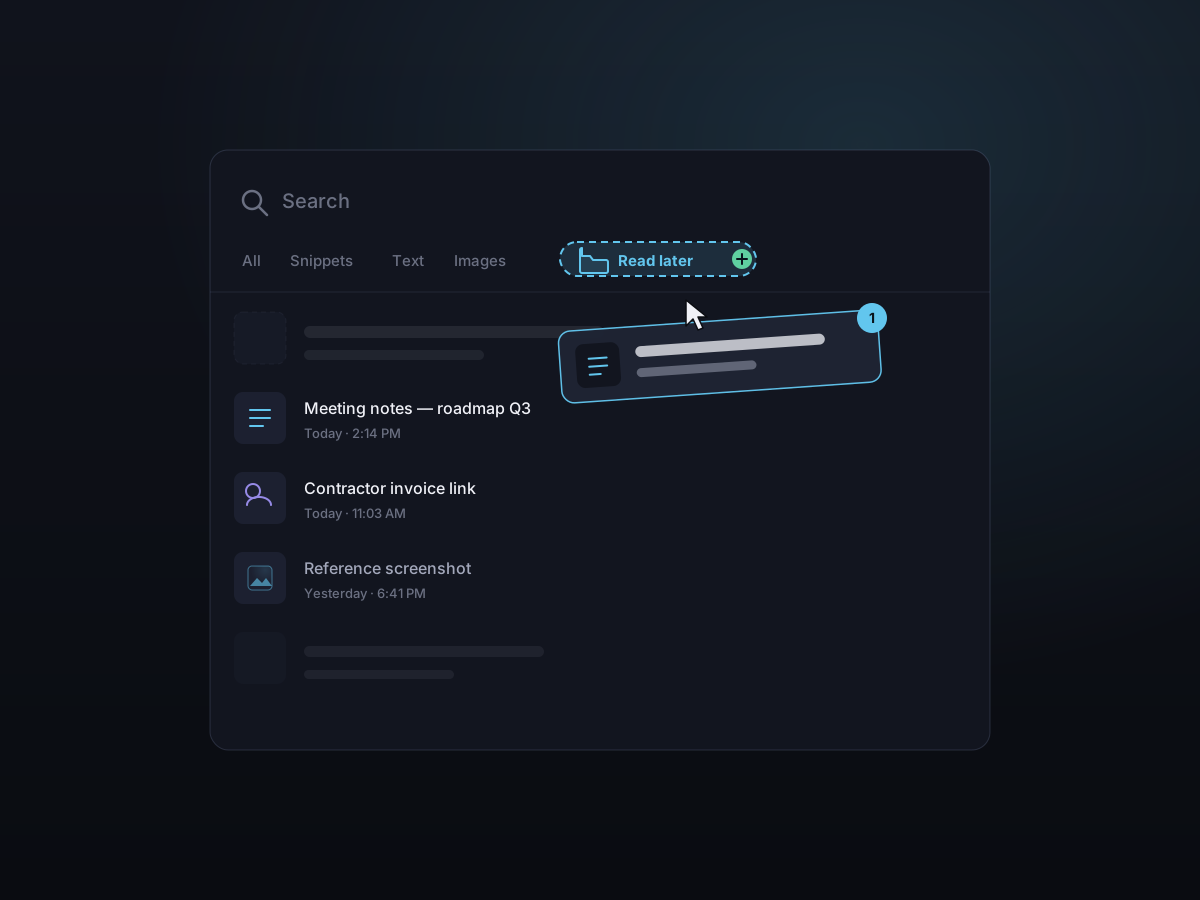
Not every group fits a rule. Create an empty manual category and drop clips into it — drag them onto the tab, or right-click and pick it. It behaves like a folder: a clip lives in one manual category, and filing it elsewhere just moves it. Create, rename, and delete these tabs right from the panel.
- Make an empty category and drag clips straight in
- Right-click a clip to file it — or rename and delete tabs
- Folder-style — one manual category per clip
- Manage tabs inline, without opening Settings
Sensible defaults, out of the box
Kopit starts with built-in tabs — All, Snippets, Text, Images, Files, plus Today and Other one toggle away — so it's useful from the first copy. Reshape the type tabs with your own rules, or reset any of them back to default.
Good to know
- Built-in tabs
- All, Snippets, Text, Images, Files, Today, Other
- Rule conditions
- Type, subkind, source app, date range, size, contained text, snippet
- Manual categories
- Create empty tabs and drag clips in — folder-style
- Combine with
- Match all (AND) or match any (OR)
- Customize
- Name, SF Symbol icon, accent color
- Tab bar
- Drag to reorder, hide/show, create, rename, delete, restore built-ins
- Switch tabs
- Click, or Tab / Shift-Tab from the keyboard