Examples
Text expansion examples for Mac users
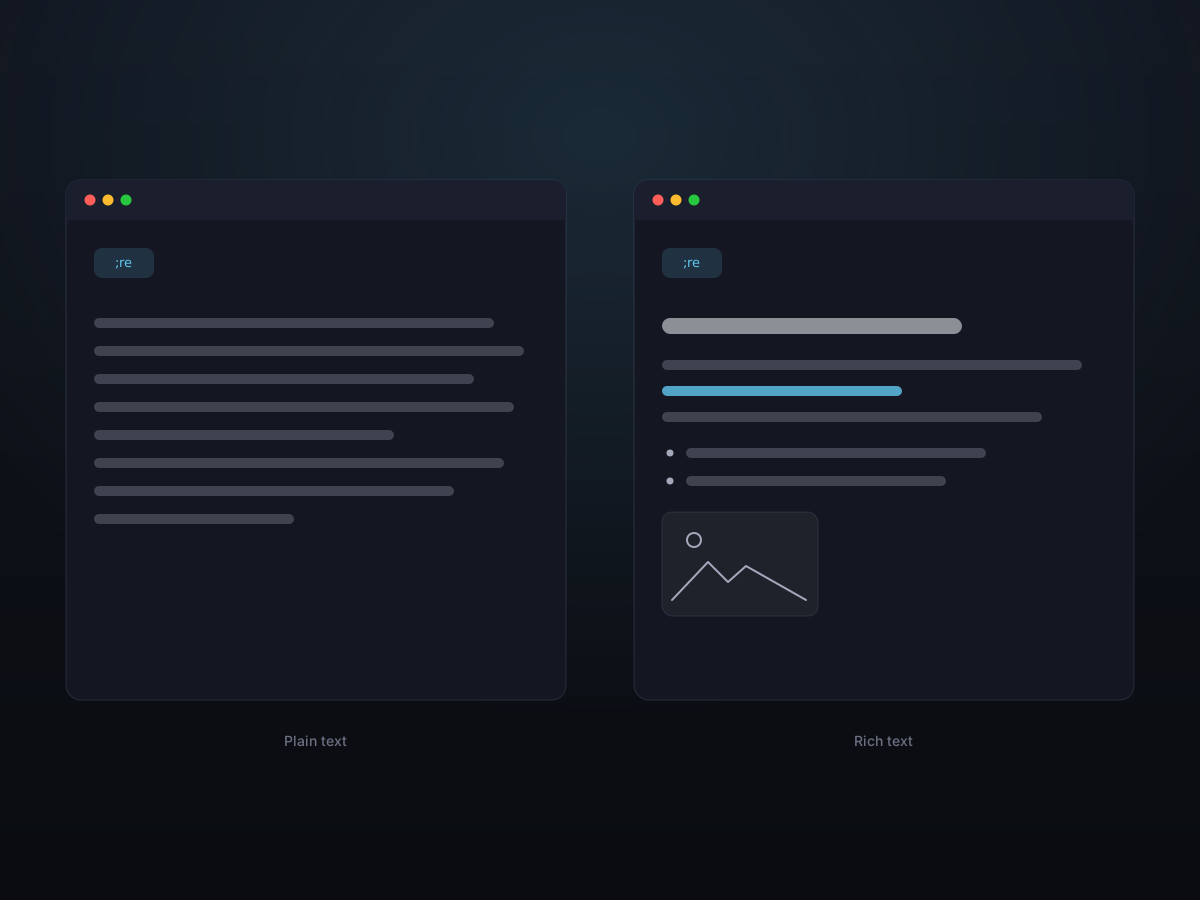
Text expansion becomes useful when snippets are tied to recurring work, not when you stare at a blank library.
Key takeaways
- Start with phrases you already typed twice this week.
- Use memorable abbreviations.
- Document when a snippet should be used.
Email and support
Save greetings, sign-offs, scheduling replies, escalation notes, refund explanations, and common troubleshooting steps.
Development and operations
Keep commands, issue templates, branch naming patterns, local URLs, and standard review comments ready without retyping.
Design and content review
Store repeatable feedback language, accessibility reminders, image export notes, and brand-safe phrases.
A realistic workflow
Build your first expansion library from evidence. Open sent mail, support replies, pull request comments, invoices, and calendar messages. Every sentence you have typed three times is a candidate. The best snippets are not clever; they are boring, accurate, and tied to a repeated job.
- Track repeated copy-paste moments instead of guessing from memory.
- Separate temporary context from reusable assets.
- Use privacy and retention rules as part of the workflow, not as afterthoughts.
Settings to decide first
Use a naming convention before the library grows. Keep abbreviations short, but not mysterious. Group them by intent: identity, scheduling, support, review, code, finance, and personal admin. Add a note inside long snippets explaining when to use them, because a wrong canned reply is worse than no snippet.
- Choose one main summon shortcut and use it consistently.
- Build a small set of Snippets from proven repetition.
- Review app exclusions whenever your work tools change.
Common mistakes
A common mistake is chasing feature lists without asking whether the feature removes a real interruption. Another is assuming that cloud sync, automation, or categories are automatically better. They are useful only when they solve a repeated problem with a clear boundary.
- Do not pay for complexity you will not use.
- Do not sync sensitive clipboard content unless the benefit is explicit.
- Do not automate a messy workflow before simplifying it.
How to know it is working
The workflow is improving when your attention stays in the app where the work is happening. You should spend less time searching old tabs, rebuilding screenshots, retyping stock replies, or hunting through downloads. That is the standard: less recovery work, not more visible tooling.
- Fewer repeated searches across apps.
- Faster replies with fewer copied mistakes.
- More confidence before sharing screenshots, links, or recorded context.
Turn it into a stable routine
To make the workflow stick, define a small operating rule before the tool becomes busy: what may be captured, which apps must be excluded, which results deserve to become reusable Snippets, and which artifacts should remain temporary. That keeps Kopit close to copying, finding, pasting, and explaining instead of turning it into another inbox. In team settings, standardize names and privacy handling: blur customer data before sharing screenshots, give Snippets titles that explain when to use them, and keep recordings as short as the explanation allows.
- Review frequent searches weekly and promote proven repetition into Snippets or categories.
- Treat customer, finance, password, and admin tools as the first exclusion candidates.
- Preview visual material before sharing so private windows or irrelevant context do not leak.
Quality checklist
Before using the result in real work, run a short quality check: is the content accurate, does it preserve enough context, did you remove irrelevant windows or private details, and can the recipient understand it without asking a follow-up question? Fast copying is only the first step. For docs, support, review, and product communication, the copied result must reduce misunderstanding. Kopit's preview, search, annotation, pins, and Snippets should serve that goal rather than collection for its own sake.
- Can you confirm the item is correct without reopening the source app?
- Have privacy, formatting, and context been checked before sharing?
- Can a similar future task reuse this through search or Snippets?
When not to use it
It also helps to know when not to use it. One-time passwords, customer keys, unredacted contracts, medical details, and financial records should not become long-lived history just because capture is convenient. Material that needs collaboration, version review, or formal archiving should not live only in a clipboard tool. Kopit is for working memory and reusable copied assets near the paste action; when content becomes a knowledge base, contract, coding standard, or official record, move it into the proper system.
- Exclude highly sensitive sources before cleanup becomes necessary.
- Use documents or project systems for approval and version history.
- Do not rely on clipboard history as the only home for long-term knowledge.
How to compare alternatives
When comparing tools, avoid counting features in isolation. Launchers such as Raycast are strong when you want many system actions in one command surface. Dedicated screenshot tools such as CleanShot X go deeper on visual capture. Text expansion products focus on reusable writing. Lightweight clipboard managers such as Maccy keep history simple. Kopit's tradeoff is to keep clipboard history, Snippets, capture, recording, OCR, and desktop pins in one local-first, keyboard-first workflow. The best choice is not the strongest single-purpose tool; it is the tool that removes the most daily switching and repeated retrieval.
- Use a launcher when command execution is the center of the workflow.
- Use a dedicated capture app when professional screenshot production is the whole job.
- Use Kopit when copying, capturing, reusing, and explaining often happen together.
Competitor-informed positioning
The competitor lesson is not to copy keywords; it is to copy the explanatory discipline. Raycast's clipboard documentation emphasizes actions, filters, and keyboard entry points. Paste frames history, search, Pinboards, and device access as a continuous reuse loop. CleanShot X, Shottr, and Snagit explain capture through the next step: annotation, scrolling capture, OCR, recording, and sharing. TextExpander teaches snippet naming, documentation, fill-ins, and team consistency. Maccy proves that speed and focus can be a product position by itself. Kopit's content should use those patterns: every feature needs entry points, scenarios, settings, privacy boundaries, troubleshooting clues, and tradeoffs against alternatives, not just a list of supported formats.
- Borrow Raycast's action-and-shortcut clarity while positioning Kopit as a local clipboard workbench.
- Borrow Paste's organization and reuse narrative while differentiating with local-first and one-time purchase framing.
- Borrow CleanShot, Shottr, and Snagit capture workflows while tying results back to clipboard history and desktop pins.
- Borrow TextExpander's snippet discipline while keeping Kopit's broader copied-asset model.
Maintenance rhythm
Keep a light maintenance rhythm: spend a few minutes each week removing obvious junk, checking whether new sensitive sources should be excluded, promoting repeated material into Snippets, and deleting temporary categories. The content library should improve with real work instead of getting heavier every month.
- Remove junk history while keeping recent material that may be reused.
- Turn repeated searches into Snippets, categories, or clearer names.
- Exclude noisy sources at the origin instead of deleting the same clutter repeatedly.
Frequently asked questions
How many snippets should I create first?
Start with five. Add only when repetition proves the need.
What prefix should I use?
Kopit defaults to a prefix like semicolon because it is easy to type and uncommon in normal words.
How do I know whether I need a clipboard manager?
If you repeatedly reopen apps or messages just to copy the same thing again, clipboard history will probably remove real friction.
What should I compare between tools?
Compare retrieval speed, preview quality, privacy defaults, capture support, text expansion, pricing model, and how much setup is required.